Frequently Asked Questions
This guide answers the questions we’re asked most often about Super Speedy Search. If you can’t find what you need here, take a look at the Troubleshooting guide or get in touch.
Table of Contents
- How do I check if Super Speedy Search is working?
- How do I get Super Speedy Search working with other search forms?
- How do I hide or show items in search results?
- How do I style the Super Speedy Search form?
- How do I format dates in Ultra Ajax output?
- How do I add extra meta fields to the WooCommerce Product Admin search?
- Why is search slow when using the WooCommerce Tab Manager?
How do I check if Super Speedy Search is working?
First, visit Settings > Super Speedy Search and check you have the fulltext index on posts enabled.

After saving settings, Super Speedy Search will produce an admin notice with a button to actually create the fulltext index. With large sites, we recommend you create the fulltext index at a low-traffic time.
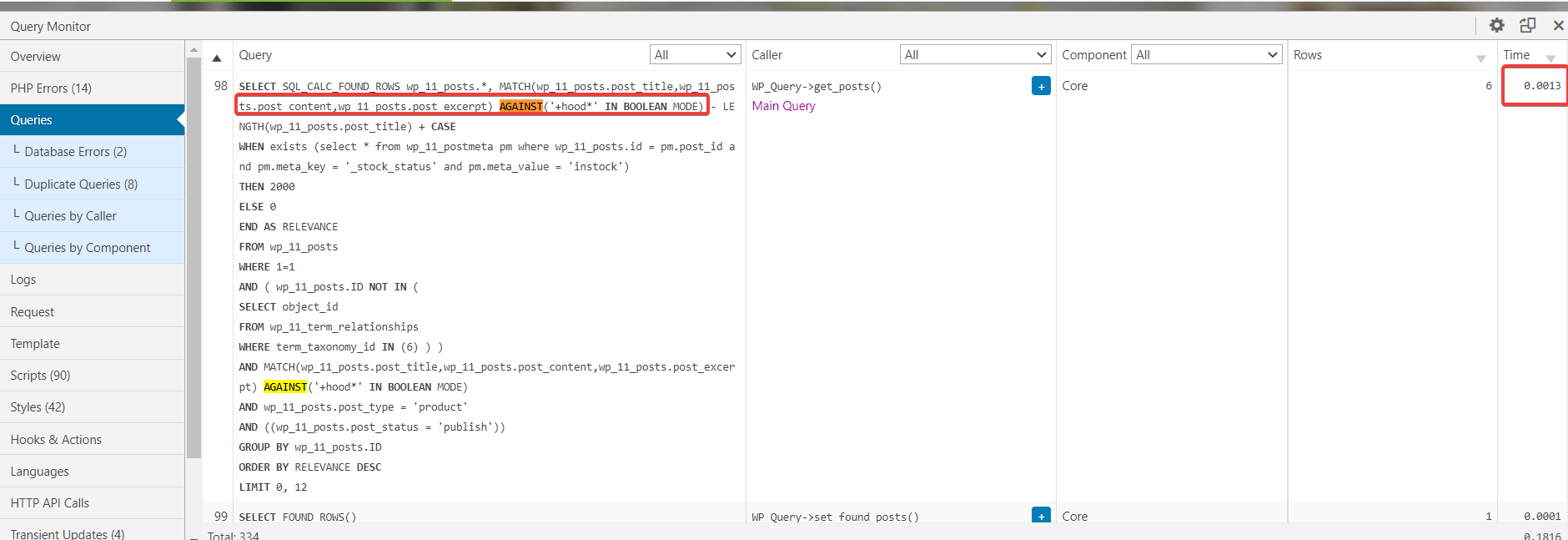
Once the index is created, install Query Monitor, perform a search on the front-end of your website, click the Query Monitor bar then click Queries. You will see a list of Queries performed by the page.
Hit CTRL+F or CMD+F to search in the window and search for the word ‘AGAINST’. There are two keywords used in fulltext search – MATCH and AGAINST – so you can search for either, but AGAINST is the preferred word to search for since it’s less frequently used in other queries. If fulltext searching is working, you’ll see something like the image below for your Main Query.
How do I get Super Speedy Search working with other search forms?
Super Speedy Search provides an ajax search widget you can use anywhere on your site. This search widget can search products, or posts or whatever custom post type you have, as well as custom metadata. On suitable archive pages, it will use ajax to update the existing archive without refreshing the page. But what if you have another search form that you’d prefer to use?
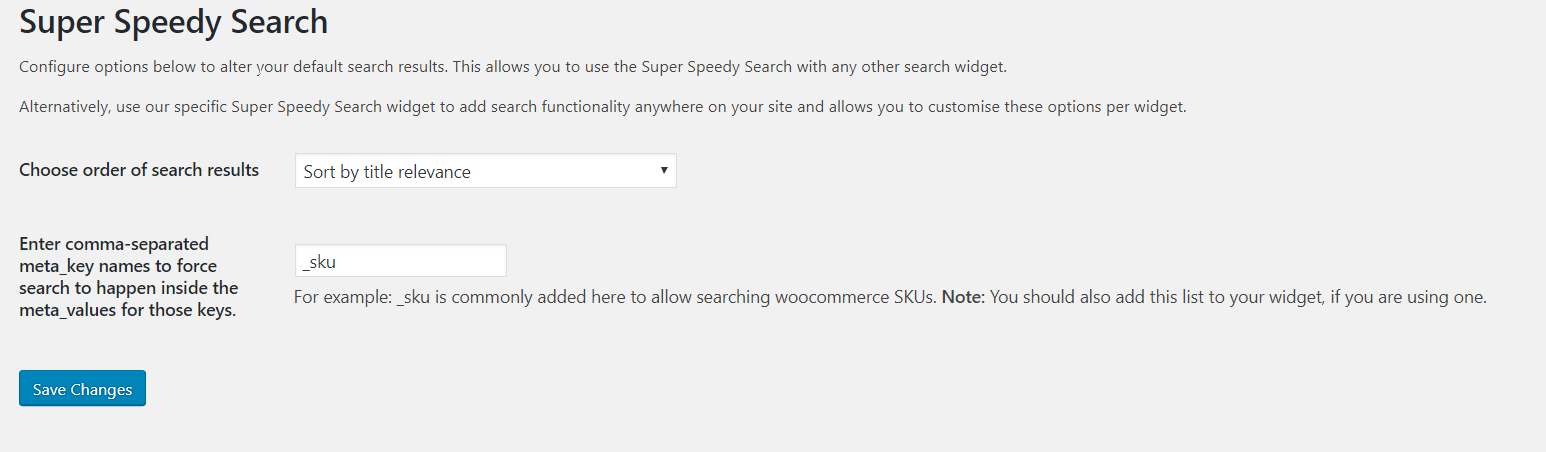
Configure default Super Speedy Search settings. If you visit Settings -> Super Speedy Search you’ll find some settings to configure the default search results. These are used when you are not using our own search widget. Configure these settings.
Make sure you use the correct search template. Search results templates in WordPress are defined by the post_type parameter that is passed through to the search results. Most often, you will probably be providing either posts (the default) or products search. For example, if you are using Uber Menu search shortcode, to produce a ‘products’ search result list, you should modify the shortcode as follows:
[ubermenu-search post_type=product]Now test your work – whatever search form you’re using, provided it uses the default built-in WordPress search system, Super Speedy Search will replace the LIKE operator with the faster and better-results-oriented MATCH operator which uses your fulltext index. To test this, activate the Query Monitor plugin on your search results page, click Queries then search for ‘AGAINST’ – it should include the keyword ‘AGAINST’ in the main SQL query.
How do I hide or show items in search results?
Super Speedy Search is incredibly fast at finding what your customers are looking for. But maybe you want to hide some things from search results?
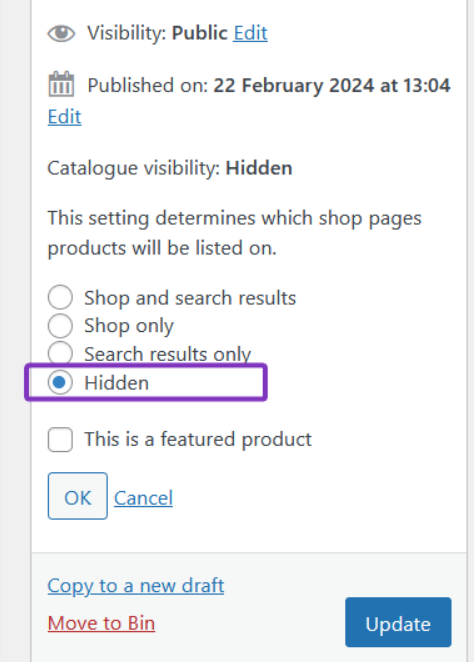
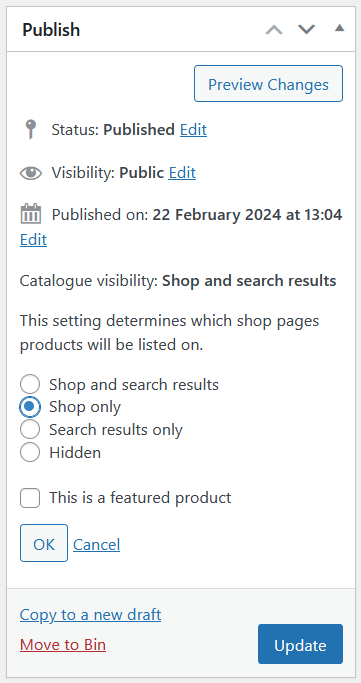
Hiding products using ‘Hidden’ or ‘Catalog Only’. If you are on our default config, there will be a setting configured to replace the slow catalog/search visibility with our own technique. In this case, if you wish to hide a specific product from your search results, you can choose to HIDE the product.
Hiding products using PHP filters. Maybe you wish to exclude entire categories of products from your search results? Or maybe you have some other need to remove items. Since we have our own custom-rolled ultra fast ajax, you cannot just add this code into the functions.php file – functions.php is only loaded when the theme is loaded and we avoid that in our ultra fast ajax.
Instead, to add programmatic filters, add a file called sss-filters.php to the top level of your theme folder. SSS will then include this file if it exists for both full page results and our ultra fast ajax.
<?php
add_filter('sss_posts_search_where', 'my_posts_search_where', 10, 2);
function my_posts_search_where($where, $wp_query) {
global $wpdb;
$where .= " AND wp_posts.ID NOT IN (SELECT object_id FROM wp_term_relationships WHERE term_taxonomy_id = 1)"; // exclude posts with term_taxonomy_id 1 (e.g. to exclude categories)
$where .= " AND wp_posts.ID NOT IN (3253138)";
return $where;
}
How do I style the Super Speedy Search form?
Super Speedy Search will firstly try to default to your active theme style. But you can always use CSS to style the Super Speedy Search bar to your preference. There are a few different areas in the search box: the search field, the search button, and the clear search cross that appears once a user searches. Here are a few different styling options. Copy the selectors, customise the properties, and add them to your Dashboard > Appearance > Customizer (or click “Customize” in your admin bar).
Search field. To customise the search area itself and change the background colour and the text colour, use the following selectors and properties. This example changes the background of the search box and the text colour of the entered search – not the text colour of the placeholder.
.super-speedy-search-form input[type="text"] {
	background-color: #a797c5;
	color: red;
}
If you want the same styling to apply while the box is selected, use almost the same selector again (copy and paste, don’t override the previous) and add the “focus” pseudo-class.
.super-speedy-search-form input[type="text"]:focus {
	background-color: #a797c5;
	color: red;
}
Search button. The search button can also have pseudo-classes attached to it. In this case, there is a “hover” pseudo-class. When a user hovers over the button it changes colour.
.super-speedy-search-form .sssbuttonwrapper .sss_search_button {
	background-color: orange;
	color: #111111;
}

.super-speedy-search-form .sssbuttonwrapper .sss_search_button:hover {
	background-color: pink;
	color: #111111;
}
Clear search. After a user begins typing, an X will appear to the left of the search button to clear the search. It can have a hover effect similarly to above. Its default background is transparent, but any colours can be applied.
.super-speedy-search-form .sssresetwrapper button[type="reset"] {
	background-color: red;
}
These are all some quick styling options. A lot more can be done with a little more CSS knowledge – this will help target the main areas.
How do I format dates in Ultra Ajax output?
By default, dates are output like 12 November 2024. If you wish to change this, you can do so. Currently there’s no visual option for this, but you can add config to your wp-config.php to change the date format.
For example, if you want to change the date format to November 12, 2024 you would add the following definition to your wp-config.php:
define('SSS_DATE_FORMAT', 'F d, Y');The following single-character items are available in the date format:
- F – Full month name
- M – Short month name
- m – month number
- d – day of the month including leading zero
- j – day of the month with no leading zeros
- Y – 4 digit year
- y – 2 digit year
How do I add extra meta fields to the WooCommerce Product Admin search?
The Meta tab in Super Speedy Search is concerned with front-end search. Often, you will wish to allow additional fields to be searched from the WooCommerce Product Admin pages. (The _sku field is added and searched automatically.)
To add extra post_meta keys as searchable from product admin, you’ll need to edit your functions.php file and add a new filter containing an array of the meta_keys you wish to search. For example, to add the Rank Math GTIN field:
add_filter('sss_woo_admin_product_meta_keys', 'sss_woo_admin_product_meta_keys', 10, 1);
function sss_woo_admin_product_meta_keys($meta_keys) {
    $meta_keys[] = '_rank_math_gtin_code';
    return $meta_keys;
}
To add multiple meta keys to your Woo product search from the wp-admin dashboard, just keep repeating the line which begins $meta_keys[] and add as many extra keys as you wish.
add_filter('sss_woo_admin_product_meta_keys', 'sss_woo_admin_product_meta_keys', 10, 1);
function sss_woo_admin_product_meta_keys($meta_keys) {
    $meta_keys[] = '_rank_math_gtin_code';
    $meta_keys[] = 'extra_meta_key';
    $meta_keys[] = 'a_third_meta_key';
    return $meta_keys;
}
Why is search slow when using the WooCommerce Tab Manager?
If you are using the WooCommerce Tab Manager, it includes an option to include the tab contents in your search results. Doing this means you will seriously slow down your search results when using Super Speedy Search. Search can only be as fast as the slowest part of the search.
On one of our client’s websites, free text search was taking over 5 minutes to complete. That was on a dedicated server with everything else optimised. This is because of something called ‘table scans’ that involve reading every single item in the database. We don’t want that at all – we want to use indexes. Usable indexes (and no table scans) make databases scale to whatever size you wish with the same speed you had when your database was small. After the fix below, their free text search completes in under 0.2 seconds.
Disable the searchable tab option. Visit the config page for WooCommerce Tabs (quickest way is to click the Configure link from the plugins list). Click each of the tabs in your list to edit them and disable the option to include these tabs in your search results.
Disable the global Tab search option. Apart from the per-tab search option, there is also a general option. I could not find a way to change this in their config, so to alter it, visit yourdomain.com/wp-admin/options.php and then search (CTRL+F or CMD+F) for wc_tab_manager_enable_search and change the option you see to ‘no’. It *may* be the case that this option doesn’t exist for you and if so, you’ll need to create it by adding the following line to your theme functions.php file, refreshing your page once to create the option, and then deleting the line again (so it doesn’t keep running this code):
add_option('wc_tab_manager_enable_search', 'no');Once you have removed these tabs from the search results, your search query will no longer be modified by the WooCommerce Tabs Manager. So, test searching and confirm it is now fast. If not, there is probably some other plugin which is also altering the search query to include a table-scan query.
(Optional) Re-add the tab content as searchable content through Super Speedy Search. If you really need to search the tab content, you can reintroduce the relevant keys through the Super Speedy Search admin interface. The meta keys used by the WooCommerce Tab Manager are:
- _product_tab_content
- _global_tab_{$tab_id}_content
If you are using global tabs, you’ll need to figure out the tab_ids for each of your global tabs. Once you have a list of the meta_keys you need to re-enable search capability for, visit Super Speedy Search settings and add the meta_keys into the correct box, separated by commas.
If you are getting slow search results with Super Speedy Search, it’s highly likely that another plugin is altering the search query and re-introducing table scans. Query Monitor can help you identify which plugins are altering the search query, and commonly plugins and themes will let you disable this slow functionality. If you are stuck, get in touch.
