Troubleshooting
Super Speedy Search is really easy to get set up and running, but if you run into any difficulties you can find solutions for them here.
Table of Contents
- Initial Table Build has not Completed
- The fulltext index fails to create on wp_posts
- “Upstream sent too big header” error (502) when building tables
- Settings page is slow to load or times out (too many meta keys)
- Search in particular language for non-latin characters is not working
- Search is still slow
- Short-token searches aren’t ranking high enough
- The search form is displaying above (over) hover menus
Initial Table Build has not Completed
Super Speedy Search has a supporting table it creates to handle fast search across multiple sources. This table can take a little while initially to create, but then it is auto maintained from then on.
If your tables have failed to build, check your MySQL version and if you have the right version, copy/paste the SQL from the advanced tab and run it manually by connecting to your phpMyAdmin. This should fix the issue and perform the initial table build.
The fulltext index fails to create on wp_posts
When you choose to use fulltext indexes, an admin notice will appear allowing you to create the fulltext index.
If the fulltext index on wp_posts fails to create, it is likely because the collation of one of the columns (post_title, post_content or post_excerpt) in your fulltext index is different from the others.
Inside MySQL (or the SQL executioner plugin) you can run this code to view your collations:
SHOW FULL COLUMNS FROM wp_posts;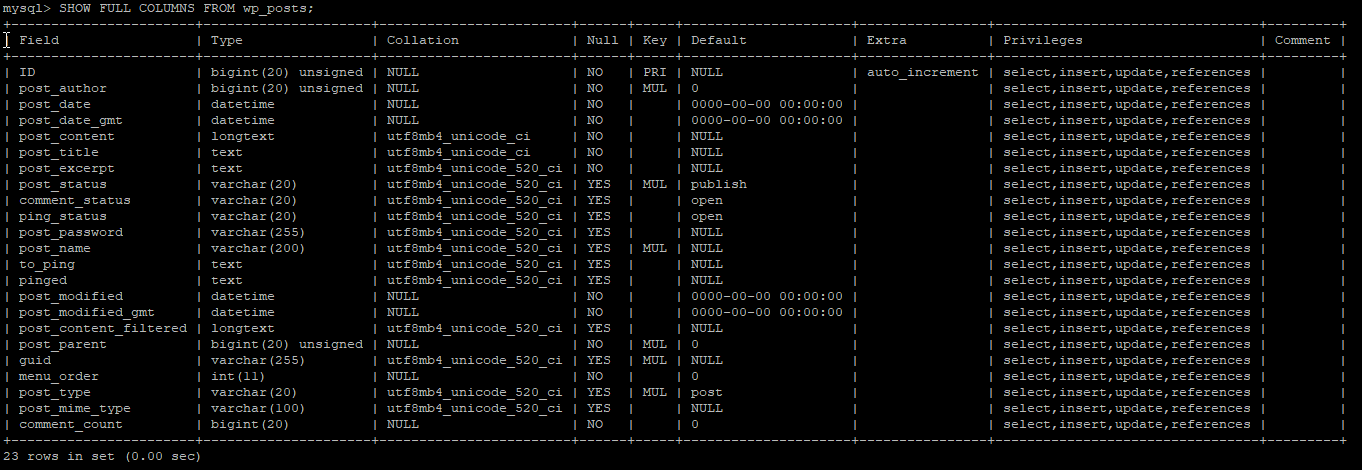
In the example above, the post_excerpt column has a different collation from post_title and post_content. To change the collation, run the following SQL:
ALTER TABLE wp_posts modify column post_excerpt text not null collate utf8mb4_unicode_ci;(change the collation after the word ‘collate’ to whatever collation you are using)
Once the ALTER TABLE command has completed, refresh your wp-admin page and click the button in the admin notice once more to create your fulltext index.
“Upstream sent too big header” error (502) when building tables
Some users have reported that when they try to build the Super Speedy Search tables, they get a 502 Gateway error. When digging into this error, it turns out to be an ‘Upstream sent too big header’ error.
Deactivate Query Monitor
Query Monitor is a fantastic tool, but one side effect of having it active is that it increases the amount of data being transferred in your headers which in turn can cause this error.
Try deactivating Query Monitor and then try your Super Speedy Search build process again to see if the error goes away.
Fixing “Upstream sent too big header” errors through config
If you’re encountering errors related to large headers or “upstream sent too big header”, and you wish to keep Query Monitor active (fair enough!) you need to adjust your web server’s configuration. The exact steps depend on your web server:
For Nginx users: add or modify these lines in your Nginx configuration file (usually nginx.conf or in the server block of your site configuration):
fastcgi_buffers 16 32k;
fastcgi_buffer_size 64k;
For Apache users: if you’re using mod_proxy_fcgi, add or modify this line in your Apache configuration:
ProxyIOBufferSize 64000For LiteSpeed users: in your LiteSpeed WebAdmin console, go to Configuration → Server → Tuning, then look for “Max Request Header Size” and increase its value (e.g. to 64K or higher if needed).
After making changes, always restart your web server to apply the new configuration. Start with moderate increases and test – if issues persist, gradually increase the values and monitor server performance to ensure stability. If you’re on shared hosting or don’t have direct server access, contact your hosting provider for assistance with these changes.
Settings page is slow to load or times out (too many meta keys)
One thing that happens in the Super Speedy Search settings page is we figure out what unique post_meta keys you have. If you have a huge wp_postmeta table then this may cause the settings page to timeout. Some users may have thousands of meta_keys and it may be tricky to actually navigate through the entire list.
In both of these cases, you can bypass our SELECT DISTINCT meta_key query by telling us in your functions.php file which meta keys to show. We do cache the result of this SELECT DISTINCT query, but if you are running regular imports your cache may be getting wiped, or your timeout settings may be so low that it doesn’t get a chance to cache the result in the first place. Or you may just want to restrict how many meta keys to show to have a cleaner interface.
In your child theme functions.php file, add the following code:
add_filter('pre_sss_meta_keys', function() {
    return ['_sku', 'external_image'];
});
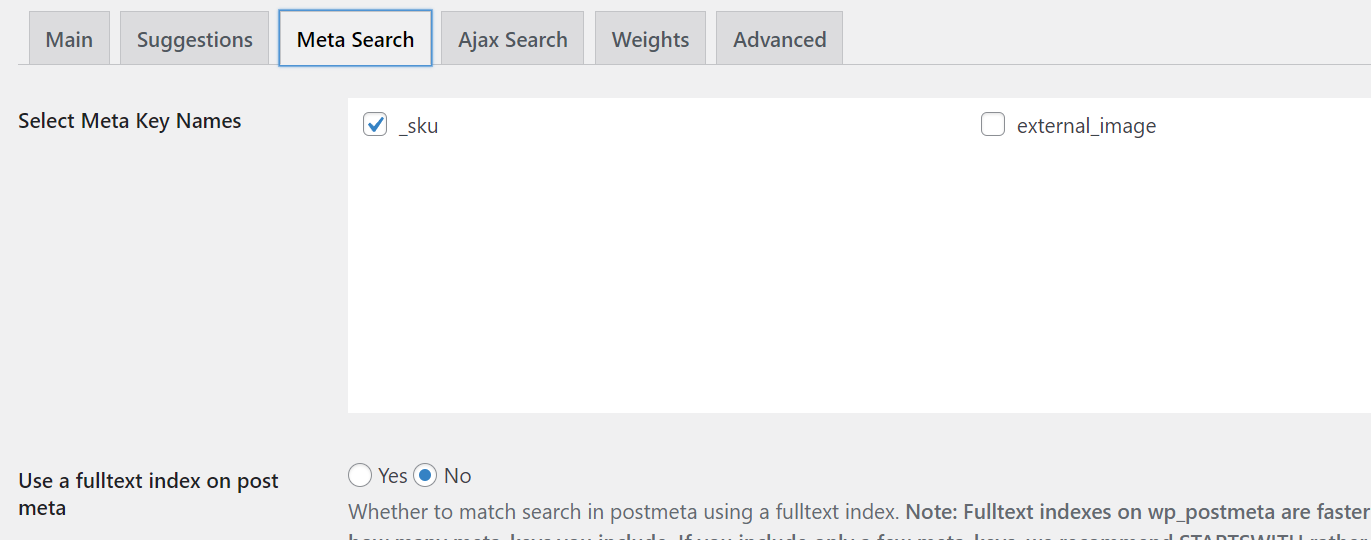
In the example above, from now on only the _sku and external_image meta_keys will be displayed as selectable options in the Super Speedy Search settings page. Add whichever meta_keys you wish to this array and these will be displayed on the Meta Search tab of our settings page.
This filter does not force these meta keys to be used, it just affects which meta keys are displayed on the settings page – i.e. you still need to visit the settings page and select the meta keys you wish to see.
Search in particular language for non-latin characters is not working
If your site is using Persian or whatever language, and you find searches are not working for non-latin characters, this is almost certainly because the character set for your database is not set correctly to your region.
Our plugin will use whatever the default character set is configured in your installation. You can see your default character set and collation in your wp-config.php file.
/** Database charset to use in creating database tables. */
define( 'DB_CHARSET', 'utf8mb4' );
/** The database collate type. Don't change this if in doubt. */
define( 'DB_COLLATE', '' );
If you have the wrong character set in your wp-config.php, you could change it there and then re-run your table build and try your non-latin search again to confirm it works.
Search is still slow
If your search is still slow, either Super Speedy Search is not running on your results pages yet, or some other plugin is altering your search query. For example, you maybe used to use a ‘Search SKU’ plugin to add SKU search to your main search. With Super Speedy Search this is no longer needed – we have incredibly fast techniques to search for SKUs, so disable any other 3rd party search feature from your theme or plugins.
You can check if something else is altering your search query by activating Query Monitor, clicking the Database Queries tab then searching for the word ‘against’ – this will match the full text logic and find the main query.
A common culprit is the WooCommerce Tab Manager, which can add slow table-scan queries to your search. See the Frequently Asked Questions guide for the fix.
Short-token searches aren’t ranking high enough
Full text engines can only work (by default) with tokens which are 3 characters or more. Our search engine obviously still lets you search for things like ‘m2 ssd’ but then only the ‘ssd’ part would get a relevancy score from the fulltext engine.
In these cases, the matching short tokens get given a weight/score which is defaulted to 50. If you find that your short token items that you want on page 1 are not high enough then you can adjust the short token weight.
Edit your wp-config.php (yes, not functions.php!) and add the following line above where it says “that’s all, stop editing!”
define( 'SSS_SHORT_TOKEN_WEIGHT_MULTIPLIER', 100 ); // this is roughly equivalent to what the full text search engine will provide for a matched 3 character token, default is 50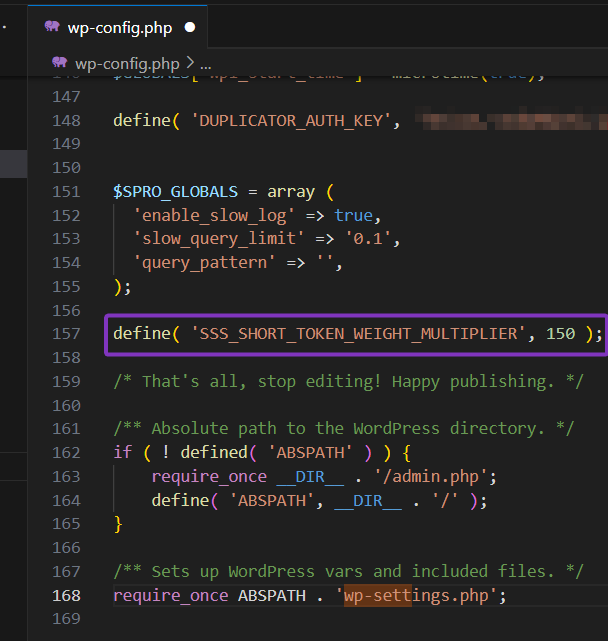
Remember – you can view the weights for each item in your search results by hovering over the Super Speedy Search menu in the black admin bar on your search results page and clicking ‘Show Weights’.
So – if you see that the item you want to be in position 1 for example has a score which is 100 less than the item in position 1, then you’d probably want to set the SSS_SHORT_TOKEN_WEIGHT_MULTIPLIER to at least 150 (i.e. an increase of 100). Once you have saved your wp-config.php, reload the page and observe the positional change and check similar short token searches to ensure they have good results too.
The Super Speedy Search form includes a dropdown which needs to display above items below it in the HTML. Because of this, we have set a CSS z-index of 999.
If you see your menus are appearing BELOW the Super Speedy Search form, this is because your theme has used a priority lower than our z-index priority.
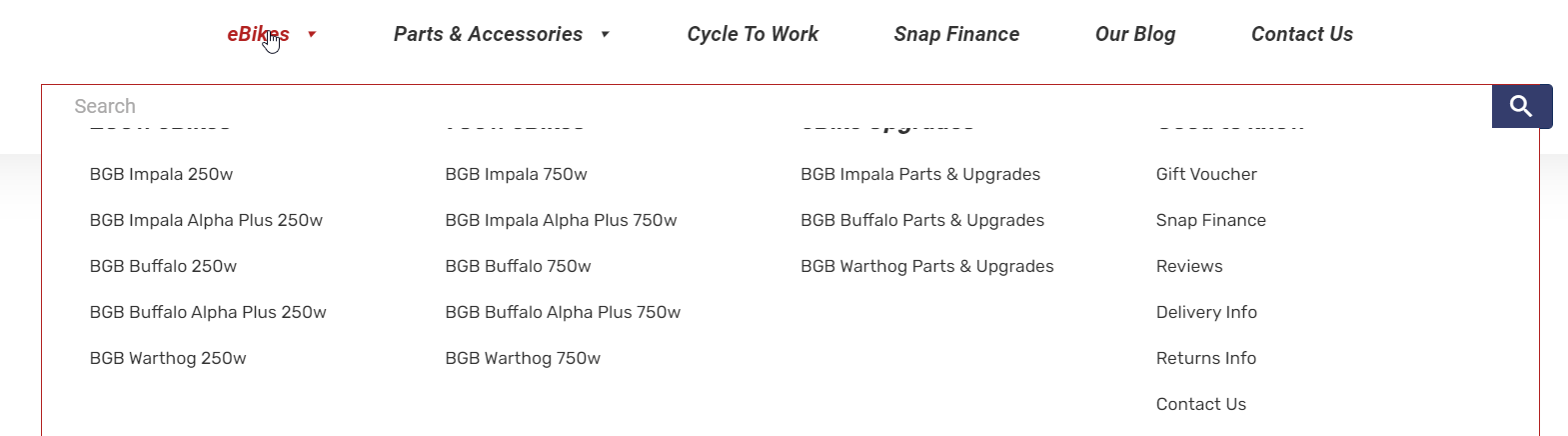
To reduce the z-index, please add the following to your Appearance > Customizer > Custom CSS section (or add it to your CSS in some other way):
.super-speedy-searchform {
z-index: 500;
}
After you have edited your CSS, confirm that the Super Speedy Search form now appears below your drop down menus and confirm the ajax results box that appears below Super Speedy Search still appears above everything. You may need to tweak the number above up or down, depending on your theme and other visual plugins you are using.
