Analytics & Caching: Track Searches and Cache Hot Results
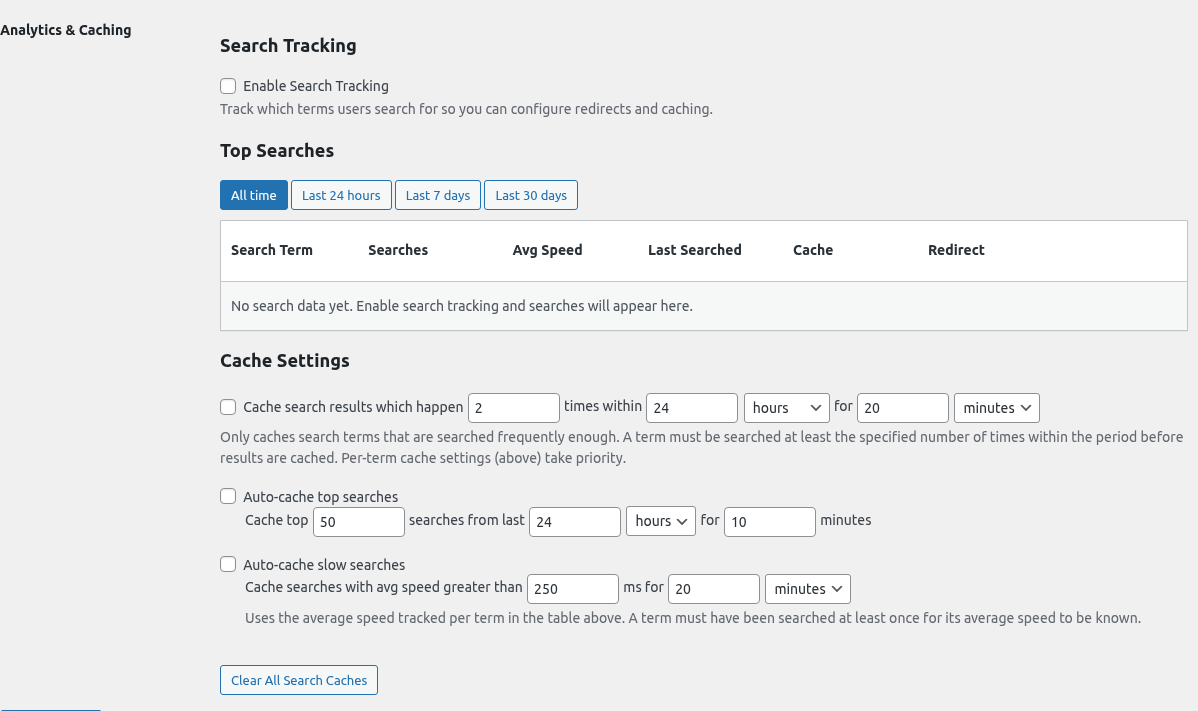
The Analytics & Caching tab gives you visibility into what people search for, plus a set of caching rules that automatically speed up repeat and slow searches. Everything on this tab is optional — if you never enable Search Tracking, nothing is recorded and no caches are written.
Search Tracking
Enable Search Tracking
The master toggle. When on, Super Speedy Search records every front-end search term (not admin searches) along with how often it’s been run, when it was last searched, and the rolling average query speed. Admin searches, AJAX-dropdown searches, and full-page searches are all captured.
Tracking uses an INSERT ON DUPLICATE KEY UPDATE upsert so each search adds a single indexed row write — no measurable performance overhead.
Note: None of the per-term controls below the table (cache, redirect) do anything unless Search Tracking is enabled, because the tracking table is where the terms come from.
Top Searches table
Shows tracked search terms sorted by frequency (most searched first), 20 per page.
Filters
- All time — every tracked term
- Last 24 hours
- Last 7 days
- Last 30 days
Filtering only affects which rows are shown — it doesn’t delete anything.
Columns
| Column | What it means |
|---|---|
| Search Term | The lowercased search string |
| Searches | How many times the term has been searched since tracking started |
| Avg Speed | Rolling average query speed in milliseconds. Shown in red if > 1000ms, amber if > 500ms. Dash if no speed has been recorded yet. |
| Last Searched | Timestamp of the most recent search for this term |
| Cache | Per-term cache toggle (stored in the wp_sss_search_redirects table) |
| Redirect | Per-term redirect — send users to a specific URL instead of running the search |
Per-term cache toggle
Ticking the Cache checkbox for a term forces it to always be cached (for 10 minutes by default), regardless of how many times it’s been searched. Useful for terms you know will be hammered — e.g. a product name during a campaign launch.
Per-term redirect
Ticking Redirect reveals a URL input. Enter a path (e.g. /tags/borisov/) and users searching that exact term will be redirected to the URL instead of being shown a results page. Ideal for:
- Popular brand/topic searches that map to a tag or category archive
- Mis-searches that have an obvious destination page
- Campaign landing pages tied to a specific keyword
Per-term cache and redirect settings take priority over the global rules below.
Cache Settings
Below the table, three automatic-cache rules can be combined. Each rule is evaluated for every search; the first rule to match wins. Priority order:
- Per-term cache (top of table)
- Frequency-based cache (searches happening X times within Y period)
- Top-X auto-cache (cache the most frequent searches)
- Slow-search auto-cache (cache searches whose average speed exceeds a threshold)
Frequency-based cache
“Cache search results which happen X times within Y period for Z duration”
Defaults: 2 searches within 24 hours, cached for 20 minutes.
A term must have been searched at least X times within the configured rolling period before its results start being cached. This avoids filling the transient table with caches for one-off searches that will never be repeated.
Tune this to your traffic. A busy shop might set 5 searches within 1 hour for 30 minutes. A small news site might set 2 searches within 7 days for 1 hour.
Auto-cache top searches
“Cache top N searches from last X period for Y minutes”
Defaults: top 50 searches from the last 24 hours, cached for 10 minutes.
Instead of a threshold, this rule caches whichever terms appear in the top-N most-frequent list. Good for catching “the obvious ones” without thinking about thresholds — whatever your most popular terms are today, they’ll be cached.
Auto-cache slow searches (new in 5.51)
“Cache searches with avg speed greater than X ms for Y duration”
Defaults: avg speed > 250ms, cached for 20 minutes.
This rule catches terms that are slow regardless of popularity. If a user searches for something unusual and the query takes 400ms, the result is cached for the next 20 minutes so any follow-up search for the same term is instant.
- Threshold is measured against the tracked Avg Speed column — the rolling average across all searches for that term, not the most recent one.
- A term needs at least one real (uncached) search for its average speed to be known. The first search runs uncached; subsequent searches benefit.
- Works even if Frequency-based cache and Top-X auto-cache are disabled.
Why 250ms? At that speed the user sees a noticeable delay before the results render. 100–150ms is usually imperceptible; anything above 250ms is worth caching.
Clear All Search Caches
The big grey button at the bottom wipes all SSS search caches in one go. Use it after:
- Changing weights or any setting that affects ranking
- Bulk updating products/posts that would make cached results stale
- Testing — e.g. you want to verify a change with a clean cache state
The button reports how many cached entries it cleared.
Common setups
Busy news site
- Enable Search Tracking
- Enable Frequency-based cache: 3 searches within 1 hour, cached for 15 minutes
- Enable Auto-cache slow searches: > 200ms for 30 minutes
- Set a few high-value per-term redirects for your top tags/categories
WooCommerce store
- Enable Search Tracking
- Enable Auto-cache top searches: top 100 from last 24 hours for 10 minutes
- Enable Auto-cache slow searches: > 250ms for 20 minutes
- Add per-term caches for any product name / SKU you expect during campaigns
Low-traffic site
- Enable Search Tracking (so you can see what users look for)
- Leave caching off until you see real traffic patterns, then tune
Where the data lives
- Search terms and averages:
wp_sss_search_log - Per-term redirects/cache flags:
wp_sss_search_redirects - Cached results: WordPress transients (
sss_cache_<hash>)
These are regular WP tables and transients — nothing in object cache or Redis-specific, so the data survives restarts but can be cleared from the admin with the Clear All Search Caches button.
