Troubleshooting
Auto Infinite Scroll works automatically on more than 95% of themes by auto-detecting your pagination and the container that holds your items. When it misbehaves it is almost always one of three things: the auto-detected CSS selectors do not fit your theme, another script interferes (a caching / “delay JavaScript” optimiser, or a theme/plugin that swaps the archive via AJAX), or your pagination has been removed or redirected so there is nothing for it to follow. Find your symptom below.
- It is not working at all
- Changing the page selectors
- The last page will not load
- It loads the wrong content, or into the wrong place
- Elementor loop grids
- Duplicate content, or it stops after one or two pages
- New items break other plugins (filters, wishlist, swatches, currency)
Table of Contents
It is not working at all
Work through these three checks first – they cover the large majority of “nothing happens” cases.
1. Is there pagination on the page?
Disable Auto Infinite Scroll and scroll to the bottom of your archive. If there is no “next” arrow or numbered pagination there, Auto Infinite Scroll has nothing to follow – it reads your theme’s existing pagination to know what to load next. This is the most common cause after a site migration, where the live site was built with different theme settings and produces different HTML. Fix the missing pagination first (a theme pagination setting, or a plugin that removed it – see below), and infinite scroll will start working.
2. A “delay / defer JavaScript” optimiser is blocking the script
If infinite scroll runs inside the theme Customizer preview but does nothing on the live front end, a performance plugin is delaying the Auto Infinite Scroll JavaScript so it never runs (Perfmatters “Delay JavaScript”, WP Rocket “Delay JavaScript execution”, and similar). Exclude the Auto Infinite Scroll script from the delay / defer list in that plugin.
3. A stale cached copy of the JavaScript
If it stopped working (or a fix is not taking effect) after an update, an old copy of the JavaScript is being served. Auto Infinite Scroll cache-busts with a ?ver= query on its script, but some hosts and CDNs strip that parameter. Flush every cache: WordPress, any minify/optimise plugin (for example Perfmatters), your host cache, and your CDN (Cloudflare). If you cannot find the culprit, waiting for caches to expire also clears it.
Changing the page selectors
Auto Infinite Scroll adds the “next” and “previous” page selectors automatically, but occasionally these will not work for a theme. When that happens you can set them yourself under Dashboard > Settings > Auto Infinite Scroll > Wrapper Settings.
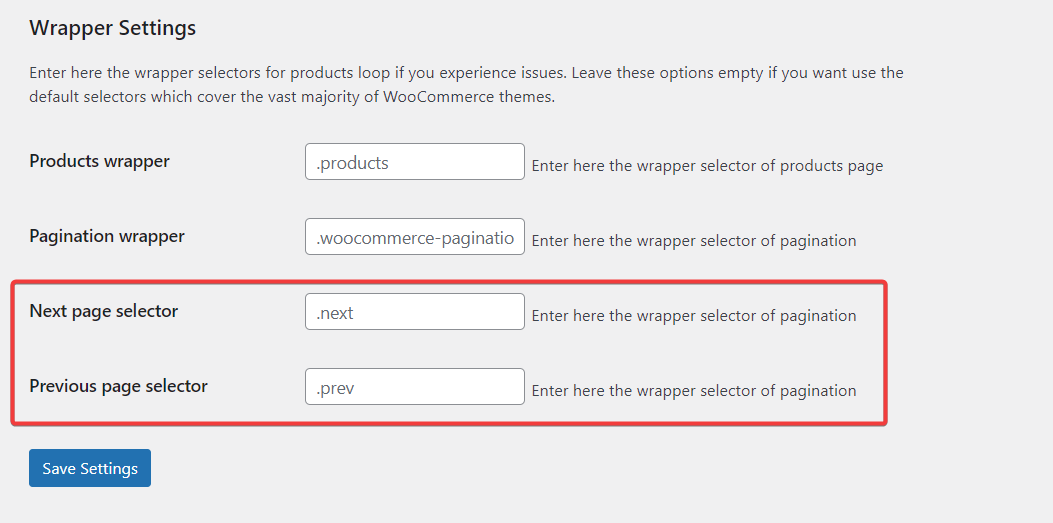
Locating and replacing selectors
Disable Auto Infinite Scroll on your plugins page and scroll to the bottom of your shop page. Click your second-to-last page, then inspect the “Next” and “Previous” buttons in your browser.
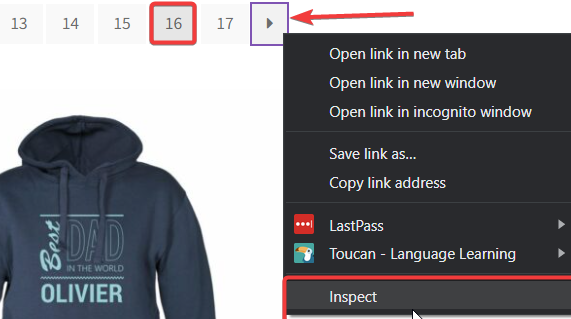
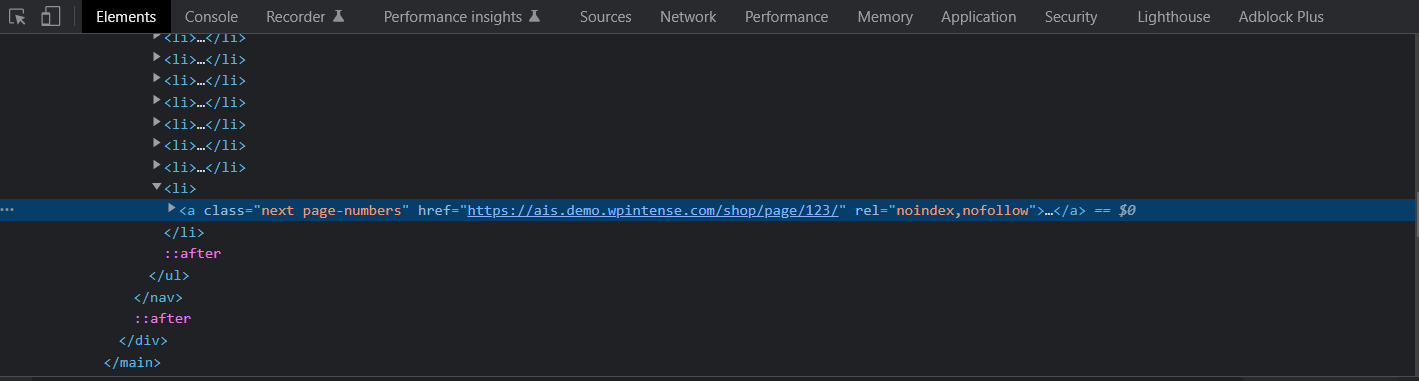
These are the “Next” and “Previous” selectors as they appear for this theme (Storefront). Pick your selectors, reactivate Auto Infinite Scroll, and add them under Settings > Auto Infinite Scroll > Wrapper Settings.


The last page will not load
On the second-to-last page, check that the “next” button uses the same selector to open the last page – or that there is a selector to reach the last page at all. In some themes (Themify, for example) the arrow to the last page is missing, so the “next” selector does not apply and the products on the final page never load.
Themify: the “last” page selector
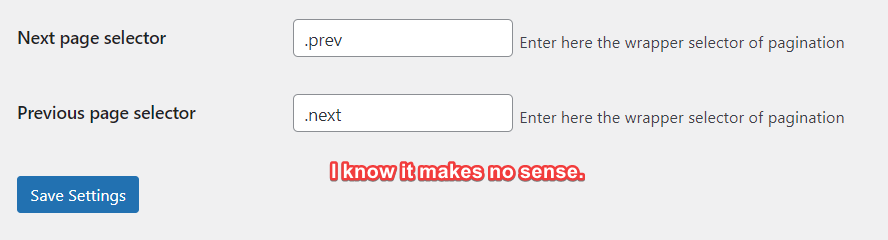
Themify has three pagination options under Themify Settings > Theme Settings > Pagination Option. The “Infinite Scroll” option is overridden by Auto Infinite Scroll and must be disabled to grab the selectors anyway. Important: deactivate Auto Infinite Scroll first so you can scroll the page to reach the page numbers.
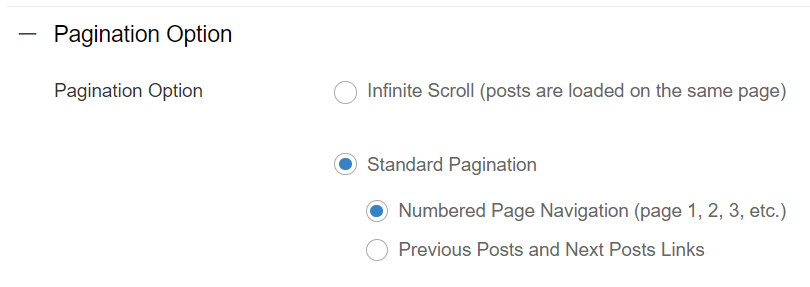
The “Numbered Page Navigation” option leaves no selector for the final page (there is no “Next” arrow on the last page, which is where Auto Infinite Scroll grabs from), so the last page will not display.

To fix it, switch the pagination setting to “Previous Posts and Next Posts Links”. In this theme the labels are counter-intuitive: “Newer Entries” jumps from page 122 to 121 and “Older Entries” from 122 to 123 – they have effectively swapped positions.


Grab both selectors, reactivate Auto Infinite Scroll, and go to Dashboard > Settings > Auto Infinite Scroll > Wrapper Settings. Because they are swapped, add the “Newer” selector in the “Previous” box and the “Older” selector in the “Next” box.
It loads the wrong content, or into the wrong place
If Auto Infinite Scroll pulls in content it should not – related products or “recently viewed” blocks, breadcrumbs, checkout Next/Previous buttons, or products from other categories – the CSS Wrapper (or Next Page) selector is matching more than your main archive. The fix is always to make the selector more specific so it only matches the real archive container. Some worked examples:
- Astra (with Elementor) shows two product lists (category terms + products): set the CSS Wrapper to
ul.products:last-of-type. Do not add a new wrapper class to the theme HTML instead – that strips the theme’s own CSS and breaks the item styling. - Divi pulling in popular / recently-viewed products: CSS Wrapper
ul.products, Item Filter.product(or leave empty), Pagination Wrapper.woocommerce-pagination, Next Page Selectora.next, and enable Replace CSS. If other blocks on the page also live insideul.products, use a more selective wrapper such as#left-area ul.products. - The wrong “next” link is followed (for example the theme’s image-hover feature adds a
.nextclass to products, so Auto Infinite Scroll grabs a product URL as page 2): set the Next Page Selector explicitly to.woocommerce-pagination a.nextwith CSS Wrapperul.productsand Pagination Wrappernav.woocommerce-pagination, then enable Replace CSS. - A blog whose pagination is nested inside the post wrapper (Enfold) can keep showing its pagination. Add comma-separated selectors so both shop and blog are covered, and hide the nested pagination with CSS targeting a blog-specific class.
Elementor loop grids
For an Elementor Loop Grid / custom loop builder archive, use:
- CSS Wrapper:
.elementor-loop-container - Pagination Wrapper:
nav.elementor-pagination - Next Page Selector:
a.next
Two common gotchas: (1) if loaded items appear blank/hidden, it is Elementor’s entrance animation applying a hidden state to the new items – turn off the entrance animation on the loop items. (2) To target one of several loop grids that share .elementor-loop-container, prefix the grid’s parent ID, e.g. #ascrolowanie .elementor-loop-container; for several specific grids use a comma-separated list (#ascrolowanie .elementor-loop-container, #bscrolowanie2 .elementor-loop-container), not chained IDs.
Duplicate content, or it stops after one or two pages
- The theme’s own AJAX pagination is enabled. If content repeats or the Load More button reappears as you scroll, disable your theme’s built-in AJAX/JS pagination – it conflicts with Auto Infinite Scroll.
- Scalability Pro removed the pagination. If scroll loads one extra page then stops, Scalability Pro’s “Remove SQL_CALC_FOUND_ROWS” front-end option has stripped the page count and pagination, so there is no next link to follow past page 2. Keep SQL_CALC_FOUND_ROWS on the front end (set it to keep) and page 3+ loads again.
- Paginated URLs are being redirected. If it loads the first page again and again, you have redirects sending
/page/2/,/page/3/back to page 1 – Auto Infinite Scroll just re-fetches page 1 forever. Remove those redirects. - Stale cached JavaScript after an update can also cause pages to be fetched but not swapped in – see “It is not working at all” above and clear all caches.
New items break other plugins (filters, wishlist, swatches, currency)
Third-party scripts (AJAX filter plugins, wishlist buttons, variation swatches, currency switchers) attach their behaviour to items that were on the page at load. When Auto Infinite Scroll injects new items, those scripts do not know to re-run on them. Auto Infinite Scroll gives you two JavaScript hooks to solve this:
auto_infinite_scroll()– call this to re-initialise Auto Infinite Scroll itself after a plugin/theme has swapped the archive via AJAX (filters, pjax navigation).- the
auto-infinite-scroll-completeevent – fires after new items have been added, so you can re-run another plugin’s JavaScript on them.
Re-initialise after an AJAX filter or navigation. Find the event the other plugin fires when it finishes loading, and call auto_infinite_scroll() in it. Confirmed examples:
// Product Filters for WooCommerce
add_action('wp_footer', function () { ?>
<script>
jQuery(document).on('ixProductFilterRequestProcessed', function () {
    auto_infinite_scroll();
});
</script>
<?php });
- WooCommerce Product Filter (wcpf):
jQuery(window).on('wcpf_update_products', function () { auto_infinite_scroll(); }); - pjax themes (Woodmart): call
auto_infinite_scroll();inside the theme’spjax:end(orpjax:success) handler. - Multi-currency switchers (page 2+ reverting to the base currency): re-run the currency plugin’s conversion function on the
auto-infinite-scroll-completeevent so the newly-loaded prices are converted.
If your AJAX filter plugin is not listed, ask its developers which JavaScript event it fires after loading, then hook that event and call auto_infinite_scroll().
- Getting Started
- Quick Start Guide – the settings and CSS selectors in detail
- Frequently Asked Questions
