Importing Variable Products
WooCommerce variable products have a parent product (type: variable) and one or more child variations (type: variation). Super Speedy Imports can import them four different ways depending on how your CSV is structured. This guide covers each method and the exact settings you need for it to work.
Table of Contents
Pick your method
Open your import, scroll to Product Data → Variable Products, and use the Import file type radio to tell SSI what your CSV looks like:

| Option | Use when |
|---|---|
| My import file contains parent and child rows | Every parent and its variations are in the same CSV. This is the classic format — the one most WooCommerce exports produce. |
| My import file contains only variations but has a grouping column | Your CSV only has variation rows. A column (for example Style or Parent_SKU) groups rows that belong under the same parent. SSI creates the parents for you. |
| My import file contains only simple/parent products (no variations) | You’re importing only parent shells, or only simple products. Useful as the first step when you plan to import variations separately afterwards. |
| My import file contains only variations (parents already in database) | The parents already exist in WooCommerce (from a prior import or entered manually). This CSV only carries the variation rows, referencing those parents. |
The fields that appear below the radio change based on what you pick.
Method 1 — Parent and child rows in one file (the normal way)
CSV layout
Every parent has one row, and every variation has one row. Parent rows have an empty parent-reference column; variation rows fill it in with the parent’s SKU.
SKU,Name,Type,Description,Regular_Price,Color,Size,Parent_SKU
SHIRT,Branded Shirt,variable,A cool shirt,,"Red, Blue","Small, Medium, Large",
SHIRT-RED-S,Branded Shirt Red Small,variation,Red small,19.99,Red,Small,SHIRT
SHIRT-RED-M,Branded Shirt Red Medium,variation,Red medium,19.99,Red,Medium,SHIRT
SHIRT-BLU-S,Branded Shirt Blue Small,variation,Blue small,19.99,Blue,Small,SHIRT
HAT,Simple Hat,simple,A hat,9.99,,,
Notes:
– The Type column is informational — SSI uses Parent_SKU to decide what’s a variation. A row with a non-empty Parent_SKU becomes a variation; everything else is a parent or simple product.
– Parent rows can carry the union of variation attribute values ("Red, Blue", "Small, Medium, Large") — WooCommerce uses those to list which options exist on the product page.
What to configure
Under Product Data:
- Main → map Product Title, Full Description, Short description, Regular price, SKU to your CSV columns as usual.
- Variable Products subsection:
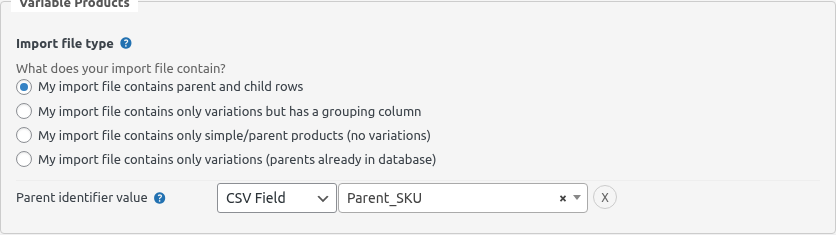
- Import file type: My import file contains parent and child rows.
- Parent identifier value: select the CSV column that holds the parent’s SKU (in the example above,
Parent_SKU). SSI uses this to match each variation row to its parent row in the same CSV.
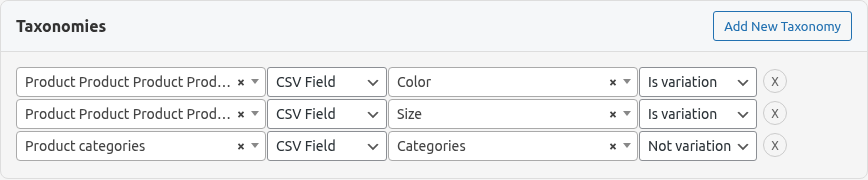
Under Taxonomies for each attribute that varies between the variations (Color, Size, etc.):
- Map the taxonomy’s source column to the CSV column.
- Set the variation dropdown next to it to Is variation. Without this, WooCommerce won’t treat the attribute as variable and the variations won’t appear on the product page. Leave non-variation taxonomies (e.g. Product categories) on Not variation.
That’s it. Categories, tags, prices, stock and images are configured exactly like simple products.
Re-running the import
SSI matches rows to existing products by SKU, so running the import again updates the parent and its variations in place — no duplicates.
Method 2 — Variations only, with a grouping column
Use this when you have a CSV that’s effectively a list of variations, with a column (often called Style, Parent_SKU, Model, or similar) that tells you which variations belong together.
CSV layout
SKU,Name,Description,Regular_Price,Color,Size,Style,Parent_Name
SHIRT-RED-S,Branded Shirt Red Small,Red small,19.99,Red,Small,SHIRT,Branded Shirt
SHIRT-RED-M,Branded Shirt Red Medium,Red medium,19.99,Red,Medium,SHIRT,Branded Shirt
SHIRT-BLU-S,Branded Shirt Blue Small,Blue small,19.99,Blue,Small,SHIRT,Branded Shirt
JACKET-BLK-M,Warm Jacket Black Medium,Black medium,49.99,Black,Medium,JACKET,Warm Jacket
JACKET-BLK-L,Warm Jacket Black Large,Black large,49.99,Black,Large,JACKET,Warm Jacket
SSI reads the grouping column, creates one parent product per unique value, and links the variation rows under it.
What to configure
- Variable Products subsection:
- Import file type: My import file contains only variations but has a grouping column.
- Parent grouping: the CSV column (or a PHP function) that groups variations —
Stylein the example above. - Auto-created parent title: the CSV column whose value should become the parent product’s title —
Parent_Nameabove. If you leave this blank, the parent title is set to the grouping value itself (soBranded Shirtwould becomeSHIRT, which is usually not what you want). - Auto-created parent SKU: leave blank if your parents don’t need a SKU. See the composite-SKU note below.
- Taxonomies — same as Method 1: map Color/Size etc. to their CSV columns and set Is variation on each one.
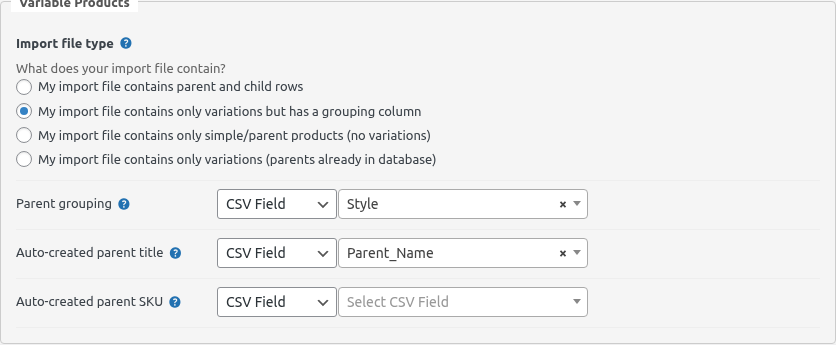
Each of the three Parent grouping / title / SKU fields can be switched from CSV Field to PHP Function with the type dropdown next to it. That’s useful when there’s no dedicated grouping column — for example, you can derive a style code from the SKU:
return function($data, $h) {
    // "JC012 JBK M" → "JC012"
    return strtok($data[$h['SKU']], ' ');
};
When Auto-created parent SKU is blank
SSI has to uniquely identify each row on re-imports. If the parent has no SKU, it can’t match on SKU alone, so SSI switches to a composite identifier of the form {grouping}|{row identifier}:
- Synthesised parent:
SHIRT| - Each variation:
SHIRT|SHIRT-RED-S
This is stored as postmeta _ssi_unique_item_id on every row, and SSI uses that key for re-import matching. You won’t see it in the admin UI, but it means re-runs of this import are idempotent — existing variations are updated in place rather than duplicated.
If you do want parents to have SKUs, point Auto-created parent SKU at a column whose value is shared across all rows in the same group (for example Style, so parent SHIRT gets SKU SHIRT). In that case the | composite isn’t used and matching uses _sku as normal.
Method 3 — Simple / parent products only, no variations
This is a plain import — no variation logic at all. Pick this option when:
- You’re importing only simple products, or
- You want to import the parent shells first and send the variation CSV in a separate run (using Method 4).
What to configure
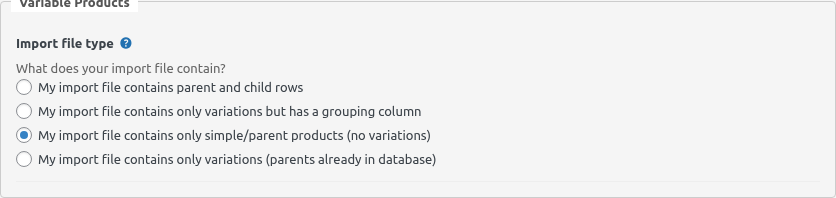
- Import file type: My import file contains only simple/parent products (no variations).
- Nothing else variation-specific. Map the Main fields, Taxonomies, Media, etc. as you would for any import.
If a product is going to be a variable parent, set its Type column to variable and include the attribute columns (Color, Size) listing the union of values its future variations will cover — WooCommerce needs those on the parent so the front-end shows the right dropdowns.
Method 4 — Variations only, parents already in the database
Use this when the parent products are already in WooCommerce (imported previously, or created by hand) and the CSV you’re about to run contains only variation rows.
CSV layout
Just the variation rows, with a column that names the parent:
SKU,Name,Description,Regular_Price,Color,Size,Parent_SKU
SHIRT-RED-S,Branded Shirt Red Small,Red small,19.99,Red,Small,SHIRT
SHIRT-RED-M,Branded Shirt Red Medium,Red medium,19.99,Red,Medium,SHIRT
SHIRT-BLU-S,Branded Shirt Blue Small,Blue small,19.99,Blue,Small,SHIRT
SHIRT-BLU-L,Branded Shirt Blue Large,Blue large,21.99,Blue,Large,SHIRT
What to configure
- Variable Products subsection:
- Import file type: My import file contains only variations (parents already in database).
- Parent identifier value: the CSV column that matches the parent’s SKU —
Parent_SKUabove. SSI looks each variation’s value up inwp_postmeta._skuto find the existing parent post ID. - Taxonomies: Color, Size etc. with Is variation set on each, same as the other methods.
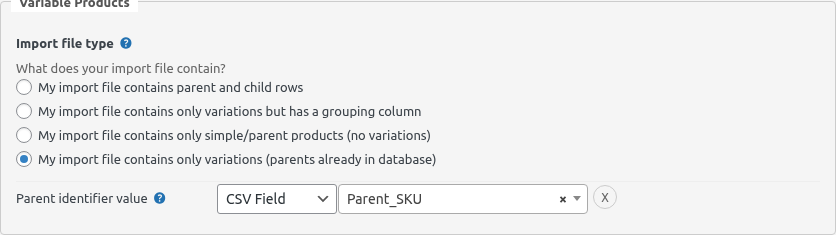
When SSI runs, it looks up each unique parent value in wp_postmeta, finds the existing parent by its SKU, and links the variation rows to it. Your existing parent title, description, images, and categories are preserved — only the variations are added/updated.
First-time workflow
If you’re setting this up for the first time, the usual sequence is:
- Import parents with Method 3 (simple/parent products only). Set
Type = variableon those rows and include the attribute columns. - Import variations with Method 4 (this method), referencing the parent SKU.
You can of course run both in one file with Method 1 — Method 4 is for cases where parents come from one data source and variations from another.
Default variation
Once your variations are imported, WooCommerce can show a “default” combination (pre-selected when a customer lands on the product page). SSI picks the first variation row it encounters per parent as the default. If you want a specific combination to be the default, put that row first in your CSV.
Common pitfalls
- Variations showing as separate simple products. You forgot Is variation on one or more taxonomies, or the attribute taxonomy doesn’t exist yet. Check Products → Attributes in the WordPress admin and make sure every attribute column in your CSV has a matching attribute there.
- Variations duplicated on re-import. Your SKU column isn’t stable between runs, or (Method 2) you changed
Auto-created parent SKUbetween runs — that changes which matching strategy SSI uses. Pick one and stick with it. - Parent product has no attribute dropdowns on the product page. The parent row doesn’t have the union of variation attribute values. For Method 1, set
"Red, Blue"/"Small, Medium, Large"style values on the parent row. For Method 2, SSI copies them from the first variation automatically, so this shouldn’t happen — but if the first variation has gaps, so will the parent. - Method 4 overwrote my parent’s title. Earlier builds of SSI did this; current versions copy the existing parent’s title/SKU into the batch so they’re preserved. If you’re on an old version, update the plugin.
