Scalability Pro Detailed Installation and Options
Go to Plugins->Add New and browse to your zip file for Scalability Pro. Upload then activate. You should also visit wp-admin > Super Speedy and enter your license key so you can download updates without having to re-upload a zip file every time.
After you have installed and activated Scalability Pro, you should visit the Settings->Scalability Pro page.
Table of Contents
- Creating Indexes
- Scalability Pro Options
- Archive Pages Tab (Query Speed)
- Remove sort options (sortorder)
- Remove SQL_CALC_FOUND_ROWS (calctotals)
- Alter main query to use EXISTS rather than LEFT JOIN (changetoexists)
- Remove CAST on wp_postmeta (removecast)
- Optimise WooCommerce Group By (optimisewoogroup)
- Remove OR check for private items on front end (optimiseprivatecheck)
- Custom Query Alterations (query_alterations)
- Single Pages Tab
- Imports Tab
- Defer term counting (defertermcounting)
- Cache Post Counts (cachepostcounts)
- Remove Image Sizes Globally (removeimagesizesglobally)
- Optimize Action Scheduler (optimiseactionscheduler)
- Optimize Product Attributes Lookup (optimiseproductattributeslookup)
- Avoid expensive WP All Export meta_key enumeration (wp_all_export_meta_enumeration)
- WooCommerce Tab (Bloat)
- Optimise WooCommerce Updates (optimisewoodeleteoptions)
- Remove custom-meta select box (removecustommeta)
- Fix Order Delivery Date plugin Admin Query (cacheorderdeliverydate)
- Cache shortcode (cacheshortcode_onsale)
- Cache Scalability ProRated 4.82 out of 5 €79.00 – €799.00Price range: €79.00 through €799.00 Select options This product has multiple variants. The options may be chosen on the product page Super Speedy SearchRated 5.00 out of 5 €79.00 – €799.00Price range: €79.00 through €799.00 Select options This product has multiple variants. The options may be chosen on the product page Fullscreen TypeformRated 4.0 out of 5 €0.00 Add to cart Super Speedy FiltersRated 4.69 out of 5 €79.00 – €799.00Price range: €79.00 through €799.00 Select options This product has multiple variants. The options may be chosen on the product page External ImagesRated 4.65 out of 5 €79.00 – €899.00Price range: €79.00 through €899.00 Select options This product has multiple variants. The options may be chosen on the product page Faster Datafeedr Product SetsRated 4.80 out of 5 €0.00 Add to cart Auto Infinite ScrollRated 3.80 out of 5 €49.00 – €299.00Price range: €49.00 through €299.00 Select options This product has multiple variants. The options may be chosen on the product page Super Speedy SitemapsRated 2.50 out of 5 €0.00 Add to cart Super Speedy ImportsRated 5.00 out of 5 €79.00 – €1,999.00Price range: €79.00 through €1,999.00 Select options This product has multiple variants. The options may be chosen on the product page Datafeedr Merchant Research €0.00 Add to cart Super Speedy Chat €0.00 – €299.00Price range: €0.00 through €299.00 Select options This product has multiple variants. The options may be chosen on the product page Super Speedy Pack Read more shortcode (cacheshortcode_bestselling)
- Scalability Pro
- Super Speedy Search
- Fullscreen Typeform
- Super Speedy Filters
- External Images
- Faster Datafeedr Product Sets
- Auto Infinite Scroll
- Super Speedy Sitemaps
- Super Speedy Imports
- Datafeedr Merchant Research
- Super Speedy Chat
- Super Speedy Pack
- WP Admin Tab
- Slow Query Log Tab
- Advanced Tab
Creating Indexes
The first thing most people will do with Scalability Pro is to create the indexes. These indexes speed up various areas of your site without changing any functionality, so you can safely enable all of these to see your site running faster.
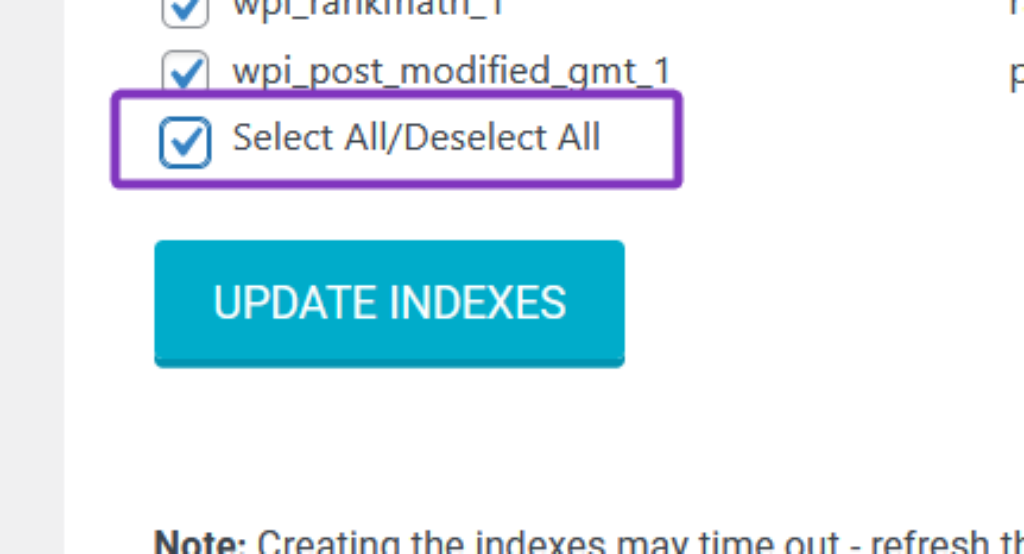
Visit the Indexes tab, click Select All then hit UPDATE INDEXES. You should ideally do this at a low traffic time for your site as creating the indexes on larger sites can take a few minutes and can slow down the site for front-end users. You should also avoid editing anything while the indexes are being created or you’ll likely see the edit not complete.
Scalability Pro Options
The options below involve either removing, altering or microcaching certain slow parts of WordPress. These options are grouped into tabs to make it simpler for you to target your performance problem.
Please read the description next to each item carefully so you know if you should activate it or not. These options are ‘safe’ in that when you change the option back, your site will be as it was before.
Below you can find descriptions of each option along with the known or possible side-effects.
Note: a couple of tabs have been renamed in recent versions. The “Archive Pages” tab is now called “Query Speed” and the “WooCommerce” tab is now called “Bloat”. The screenshots below are from an earlier version, but the options are the same.
Archive Pages Tab (Query Speed)
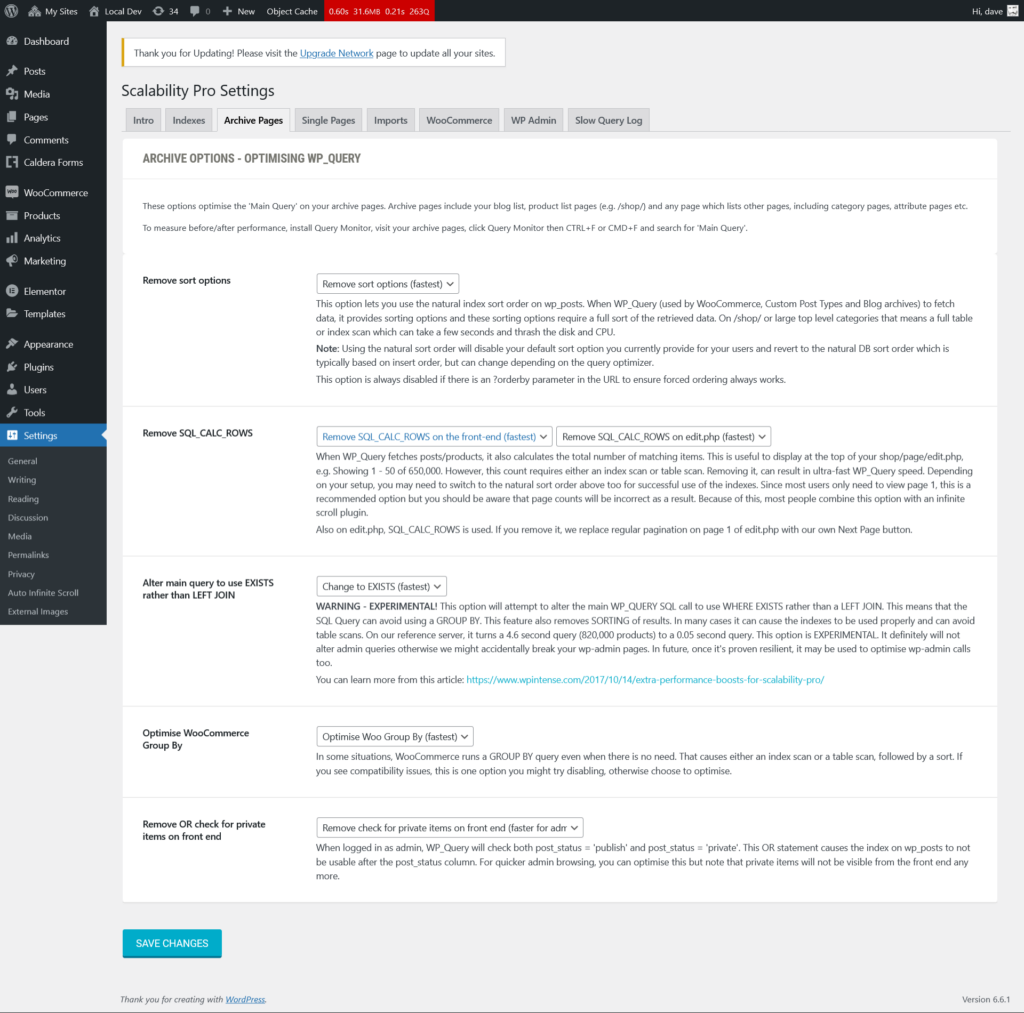
The archive pages options involve optimisations surrounding WP_Query and specifically when WP_Query is used to fetch multiple items, e.g. fetch 20 products for your product category page. Most of these options change behaviour, so read each one carefully before enabling it.
Remove sort options (sortorder)
This option lets you use the natural index and sort order on your posts. When WP_Query (used by WooCommerce, Custom Post Types, and Blog archives) fetches posts/products, it avoids custom sort options, requiring less CPU for sorting.
SQL Impact: This prevents extra sorting operations, reducing the time and resources needed to retrieve data, especially beneficial for large datasets.
Side Effects: Disables your default sort option. The natural DB sort order may vary based on insert order, affecting display consistency. Note if someone adds ?orderby to a URL (e.g. they choose a specific order from a dropdown) then this option is bypassed.
Remove SQL_CALC_FOUND_ROWS (calctotals)
This option removes SQL_CALC_FOUND_ROWS from SQL queries. It applies both on the front end (calctotals) and, separately, on the wp-admin edit.php product/post lists (calctotals_admin).
SQL Impact: Speeds up queries by avoiding a table scan to count the total number of matching items. Significant performance boost for large datasets IF the table scan is removed (other parts of the SQL query could still cause a table scan).
Side Effects: Pagination will no longer show the real number of pages. To keep pagination working, Scalability Pro fakes the total, and you can choose to either show that faked page count or replace the final page number with a word of your choice (default “Many”) so users aren’t misled. On the wp-admin edit.php lists, regular pagination on page 1 is replaced with a Next Page button. Because of this, most people combine this option with an infinite scroll plugin. This option definitely changes behaviour, so test it.
Alter main query to use EXISTS rather than LEFT JOIN (changetoexists)
This option alters the main WP_Query SQL call to use WHERE EXISTS instead of a LEFT JOIN. This can significantly improve performance by removing the need for sorting and grouping results.
SQL Impact: Can turn a 4.6-second query (for 820,000 products) into a 0.05-second query by reducing the overhead of JOIN operations.
Side Effects: This is experimental and it removes sorting of results, so result order can change. It may cause compatibility issues with plugins and themes that rely on the default query structure, and could lead to unexpected behaviour or broken admin pages if not thoroughly tested. It never alters admin queries, so it won’t break wp-admin. If you find this option breaks any particular plugin, please post a screenshot below.
Remove CAST on wp_postmeta (removecast)
WordPress applies a CAST function to the meta_value column on many wp_postmeta queries. This cast is redundant, since MySQL auto-casts where necessary, but because a function is applied to the column, MySQL cannot use any index you create on it. This option removes the redundant CAST so your indexes can be used.
SQL Impact: Lets meta_value queries use your indexes instead of falling back to a scan. This pairs naturally with the custom indexes from the Indexes tab.
Side Effects: None. The cast is redundant, so removing it returns the same results, just faster. Highly recommended.
Optimise WooCommerce Group By (optimisewoogroup)
This option optimizes some queries by removing unnecessary GROUP BY clauses.
There are 2 cases when this can kick in:
- The query only selects from wp_posts and does not join to other tables – in these cases we can remove DISTINCT and we can remove GROUP BY as they make no sense.
- The query only selects rows from wp_posts but does also join to other tables, e.g. to wp_postmeta – in these cases we can use DISTINCT instead of GROUP BY. The GROUP BY operation requires first a sort of the data, then it removes duplicates whereas DISTINCT only removes duplicates, no initial sort.
SQL Impact: Avoids unnecessary sorting & table scans and which can dramatically improve query performance.
Side Effects: Should not have side effects. It only removes GROUP BY and DISTINCT when safe to do so, or it replaces GROUP BY with DISTINCT but only when safe to do so. It may result in the order of results changing if the ORDER BY clause is not present (since GROUP BY would order by the grouping column whereas DISTINCT will not).
Remove OR check for private items on front end (optimiseprivatecheck)
This option optimizes WP_Query to only check for published items.
SQL Impact: Removes redundant post status checks, improving query performance.
Side Effects: Private items will not be visible on the front end. In addition, some FSE’s are affected negatively by this option, e.g. Elementor draft pages will not be editable, so if you are using Elementor FSE then don’t use this option.
Custom Query Alterations (query_alterations)
This is an advanced feature at the bottom of the tab. It lets you apply any of the query optimisations above to a specific part of a page load, rather than site-wide. Each alteration starts and ends on WordPress action hooks with priorities you choose, and you tick which optimisations to apply in that window (remove SQL_CALC_FOUND_ROWS, remove sort, change to EXISTS, remove CAST, optimise group by, remove private check, or specify post type).
SQL Impact: The same as the individual options above, but scoped to the hooks you specify, so you can target a single widget or plugin query.
Side Effects: Depends entirely on which optimisations you tick, and several of them change behaviour. Because it is precise, it is also possible to get it wrong, so test the affected page carefully after adding an alteration and check that results and pagination still look right. If in doubt, ask us on Discord.
Single Pages Tab
This tab currently just has one optimisation on it, specifically for WooCommerce variations.
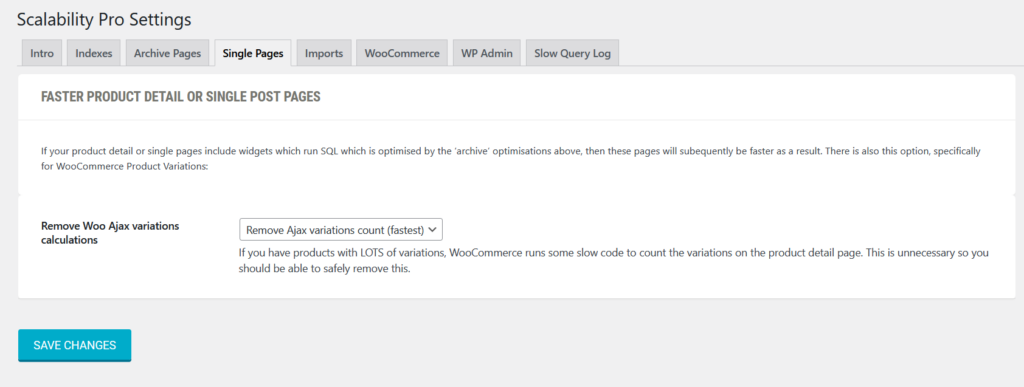
Remove Woo Ajax variations calculations (removeajaxvariationscalc)
Removes the count of WooCommerce product variations, which can slow down product detail pages.
SQL Impact: Reduces the overhead of variation counting queries.
Possible Side Effects: Speeds up initial page load. May slow down the variation drop-down box when clicked. May have no affect if you have altered how the variation form displays on the page.
Imports Tab
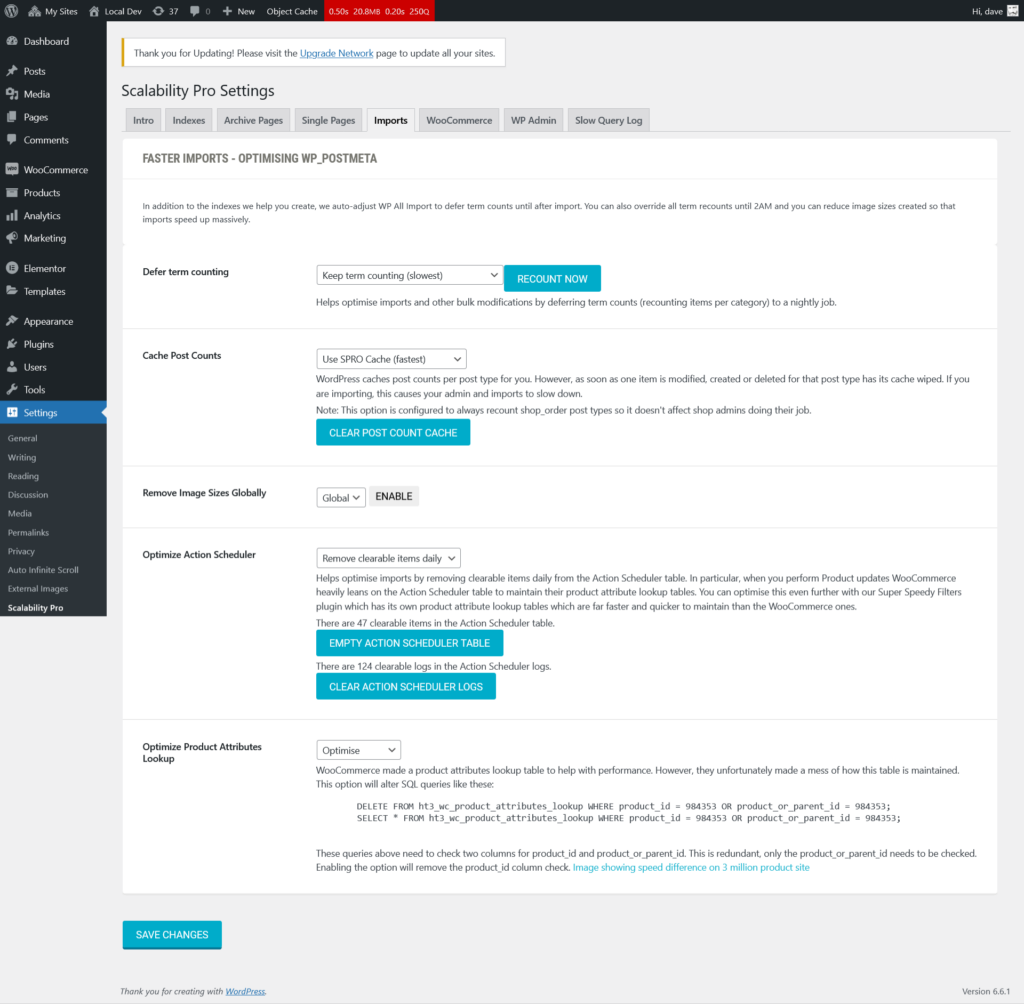
Defer term counting (defertermcounting)
Defers term counting operations to improve import performance. By default, terms will be recounted after every product update. Counting terms can take a few seconds on large websites, so avoiding this can significantly speed up imports.
SQL Impact: Prevents frequent term count updates, reducing the load on the database during imports.
Possible Side Effects: Term counts might be inaccurate until they are recalculated by the nightly job (or manually with the “Recount now” button).
Cache Post Counts (cachepostcounts)
Caches post counts for all the various post types to replace the WP cache which gets wiped as soon as any item is updated/added/deleted.
SQL Impact: We create a little table and intercept the count terms command and if we previously counted, we return from the table cache. This covers queries like SELECT count(*) from wp_posts where post_type = ‘posts’. WordPress *has* a cache for this already, but they wipe the cache every time a post/product is added/updated/deleted which is all the time if you are importing.
Possible Side Effects: Cached counts may become stale and not reflect real-time data changes. Note the shop_order post type is always recounted so shop admins are not affected.
Remove Image Sizes Globally (removeimagesizesglobally)
This option removes unnecessary image sizes globally across your WordPress site. You choose which registered image sizes to keep, and WordPress stops generating the rest during uploads and imports. Nothing is removed until you configure which sizes to keep.
SQL Impact: This does not have a direct SQL impact, but it significantly reduces the disk space usage and the number of image size variations generated during media uploads. It helps to prevent clutter and bloat in the uploads directory.
Possible Side Effects: If your theme or plugins rely on specific image sizes that are removed, it could cause images to display incorrectly or not at all in certain contexts. Be sure to verify that your active theme and plugins do not depend on the image sizes you remove.
Optimize Action Scheduler (optimiseactionscheduler)
Removes old clearable items from the Action Scheduler table. WooCommerce leans heavily on Action Scheduler to maintain its product attribute lookup tables during product updates, so on busy stores this table can grow into the millions of rows. There are also buttons to empty the Action Scheduler table and clear its logs if you need to clear a backlog straight away.
- SQL Impact: Keeps the Action Scheduler table smaller and more efficient.
- Possible Side Effects: None. It only removes already completed, failed or cancelled actions and logs.
Optimize Product Attributes Lookup (optimiseproductattributeslookup)
Optimizes the WooCommerce product attributes lookup table. WooCommerce checks both product_id and product_or_parent_id in these queries, which is redundant since only product_or_parent_id needs checking. Enabling this removes the redundant product_id check so the query can use its index.
SQL Impact: Removes redundant columns from lookup queries, letting the background attribute lookup regeneration use the index.
Possible Side Effects: None noted.
Avoid expensive WP All Export meta_key enumeration (wp_all_export_meta_enumeration)
WP All Export scans the whole of wp_postmeta to grab every meta_key and show them in a select box when you edit an export. On a large store that scan is very slow or times out, and it is rarely needed since people seldom filter exports by custom fields. This option has two modes: Cache runs the scan once and serves the list from cache afterwards, and Prevent skips the scan entirely and returns a placeholder so you type meta keys in manually.
SQL Impact: Removes a repeated full scan of wp_postmeta from the WP All Export edit screen.
Possible Side Effects: Cache mode is transparent. In Prevent mode, the meta_key dropdown in WP All Export is no longer populated, so you type your meta keys in by hand.
WooCommerce Tab (Bloat)
If you are running WooCommerce, and you have a large number of products or a large number of orders, these options will help you get speed back to your site.
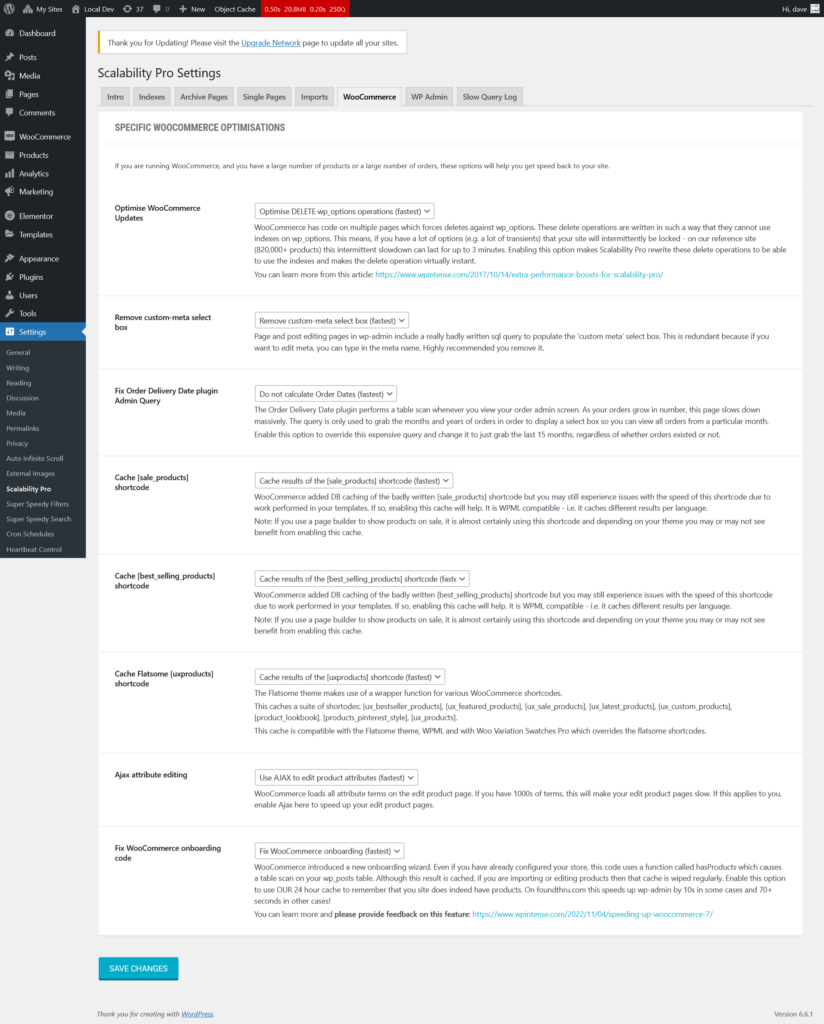
Optimise WooCommerce Updates (optimisewoodeleteoptions)
WooCommerce has code on multiple pages which forces deletes against wp_options. These delete operations are written in such a way that they cannot use indexes on wp_options, so on a store with a lot of options (e.g. a lot of transients) the site will intermittently lock while MySQL scans the table. On our reference site (820,000+ products) this can last up to 3 minutes. This option rewrites those deletes so they can use the indexes and makes them virtually instant.
SQL Impact: Turns a full wp_options table scan into an indexed, near-instant delete.
Side Effects: None. The same rows are deleted, just faster.
Remove custom-meta select box (removecustommeta)
Page and post editing pages in wp-admin include a really badly written SQL query to populate the ‘custom meta’ select box. This is redundant because if you want to edit meta, you can type in the meta name. Highly recommended you remove it.
SQL Impact: Removes a full scan of wp_postmeta from the post and page editors.
Side Effects: The custom fields dropdown is removed from the post editor. You can still add custom fields by typing the meta name in.
Fix Order Delivery Date plugin Admin Query (cacheorderdeliverydate)
The Order Delivery Date plugin performs a table scan whenever you view your order admin screen. The query is only used to grab the months and years of orders in order to display a filter select box. Enable this option to override that expensive query and just grab the last 15 months, regardless of whether orders existed or not.
SQL Impact: Replaces a table scan of your orders with a fixed 15 month list.
Side Effects: The month/year filter dropdown always shows the last 15 months rather than only the months that actually contain orders.
Cache shortcode (cacheshortcode_onsale)
WooCommerce added DB caching of the badly written
shortcode but you may still experience issues with the speed of this shortcode due to work performed in your templates. If so, enabling this cache will help. It is WPML compatible, i.e. it caches different results per language.SQL Impact: Serves the shortcode output from cache instead of running the product query on every page load.
Side Effects: None, other than the sale grid may lag slightly until the cache refreshes.
Cache
-

Scalability Pro
Price range: €79.00 through €799.00
Select options
This product has multiple variants. The options may be chosen on the product page
-

Super Speedy Search
Price range: €79.00 through €799.00
Select options
This product has multiple variants. The options may be chosen on the product page
-

Fullscreen Typeform
€0.00
Add to cart
-

Super Speedy Filters
Price range: €79.00 through €799.00
Select options
This product has multiple variants. The options may be chosen on the product page
-

External Images
Price range: €79.00 through €899.00
Select options
This product has multiple variants. The options may be chosen on the product page
-
Faster Datafeedr Product Sets
€0.00
Add to cart
-

Auto Infinite Scroll
Price range: €49.00 through €299.00
Select options
This product has multiple variants. The options may be chosen on the product page
-

Super Speedy Sitemaps
€0.00
Add to cart
-

Super Speedy Imports
Price range: €79.00 through €1,999.00
Select options
This product has multiple variants. The options may be chosen on the product page
-
Datafeedr Merchant Research
€0.00
Add to cart
-

Super Speedy Chat
Price range: €0.00 through €299.00
Select options
This product has multiple variants. The options may be chosen on the product page
-

Super Speedy Pack
Read more
shortcode (cacheshortcode_bestselling)
-
Scalability Pro
Price range: €79.00 through €799.00 Select options This product has multiple variants. The options may be chosen on the product page -
Super Speedy Search
Price range: €79.00 through €799.00 Select options This product has multiple variants. The options may be chosen on the product page -
Fullscreen Typeform
€0.00 Add to cart -
Super Speedy Filters
Price range: €79.00 through €799.00 Select options This product has multiple variants. The options may be chosen on the product page -
External Images
Price range: €79.00 through €899.00 Select options This product has multiple variants. The options may be chosen on the product page -
Faster Datafeedr Product Sets
€0.00 Add to cart -
Auto Infinite Scroll
Price range: €49.00 through €299.00 Select options This product has multiple variants. The options may be chosen on the product page -
Super Speedy Sitemaps
€0.00 Add to cart -
Super Speedy Imports
Price range: €79.00 through €1,999.00 Select options This product has multiple variants. The options may be chosen on the product page -
Datafeedr Merchant Research
€0.00 Add to cart -
Super Speedy Chat
Price range: €0.00 through €299.00 Select options This product has multiple variants. The options may be chosen on the product page -
Super Speedy Pack
Read more
WooCommerce added DB caching of the badly written
-
Scalability Pro
Price range: €79.00 through €799.00 Select options This product has multiple variants. The options may be chosen on the product page -
Super Speedy Search
Price range: €79.00 through €799.00 Select options This product has multiple variants. The options may be chosen on the product page -
Fullscreen Typeform
€0.00 Add to cart -
Super Speedy Filters
Price range: €79.00 through €799.00 Select options This product has multiple variants. The options may be chosen on the product page -
External Images
Price range: €79.00 through €899.00 Select options This product has multiple variants. The options may be chosen on the product page -
Faster Datafeedr Product Sets
€0.00 Add to cart -
Auto Infinite Scroll
Price range: €49.00 through €299.00 Select options This product has multiple variants. The options may be chosen on the product page -
Super Speedy Sitemaps
€0.00 Add to cart -
Super Speedy Imports
Price range: €79.00 through €1,999.00 Select options This product has multiple variants. The options may be chosen on the product page -
Datafeedr Merchant Research
€0.00 Add to cart -
Super Speedy Chat
Price range: €0.00 through €299.00 Select options This product has multiple variants. The options may be chosen on the product page -
Super Speedy Pack
Read more
SQL Impact: Serves the shortcode output from cache instead of running the product query on every page load.
Side Effects: None, other than the grid may lag slightly until the cache refreshes.
Cache Flatsome [uxproducts] shortcode (cacheshortcode_uxproducts)
The Flatsome theme makes use of a wrapper function for various WooCommerce shortcodes. This caches a suite of shortcodes: [ux_bestseller_products], [ux_featured_products], [ux_sale_products], [ux_latest_products], [ux_custom_products], [product_lookbook], [products_pinterest_style], [ux_products]. This cache is compatible with the Flatsome theme, WPML and with Woo Variation Swatches Pro which overrides the Flatsome shortcodes.
SQL Impact: Serves these shortcode grids from cache instead of rebuilding them on every page load.
Side Effects: None, other than the grids may lag slightly until the cache refreshes.
Ajax attribute editing (ajaxattributeedit)
WooCommerce loads all attribute terms on the edit product page. If you have 1000s of terms, this will make your edit product pages slow. If this applies to you, enable Ajax here to speed up your edit product pages.
SQL Impact: Loads attribute terms on demand over AJAX rather than all at once.
Side Effects: None on the front end. The edit product screen loads attribute terms when you interact with them rather than up front.
Fix WooCommerce onboarding code (fixwoo_onboarding)
WooCommerce introduced a new onboarding wizard. Even if you have already configured your store, this code uses a function called hasProducts which causes a table scan on your wp_posts table. Although this result is cached, if you are importing or editing products then that cache is wiped regularly. Enable this option to use our 24 hour cache to remember that your site does indeed have products. On foundthru.com this speeds up wp-admin by 10s in some cases and 70+ seconds in others.
SQL Impact: Replaces a repeated “do we have products?” table scan with a 24 hour cached result.
Side Effects: None. This only affects the onboarding check in wp-admin.
Switch off phone home (stop_phone_home)
Plugin licence checks and telemetry can add 10+ seconds to admin page loads, because WordPress waits for each outbound request to finish. Enable this option to prevent API calls to third-party websites (except WordPress.org and common payment providers). You can add your own allowed hosts in the allowlist box, one wildcard pattern per line.
SQL Impact: None. This blocks slow outbound HTTP requests, not SQL.
Side Effects: This blocks outbound calls from wp-admin, so a plugin that needs to reach its own server for licensing or updates may stop working unless you add it to the allowlist. It only affects admin requests, not the front end.
WP Admin Tab
The WP_Query archive optimisations above will help, but there are more ‘table scan’ incurring widgets on wp-admin archives, specifically the ‘post type’ dropdown, ‘category’ dropdown, and the ‘post status’ counts. These options help you optimise those.
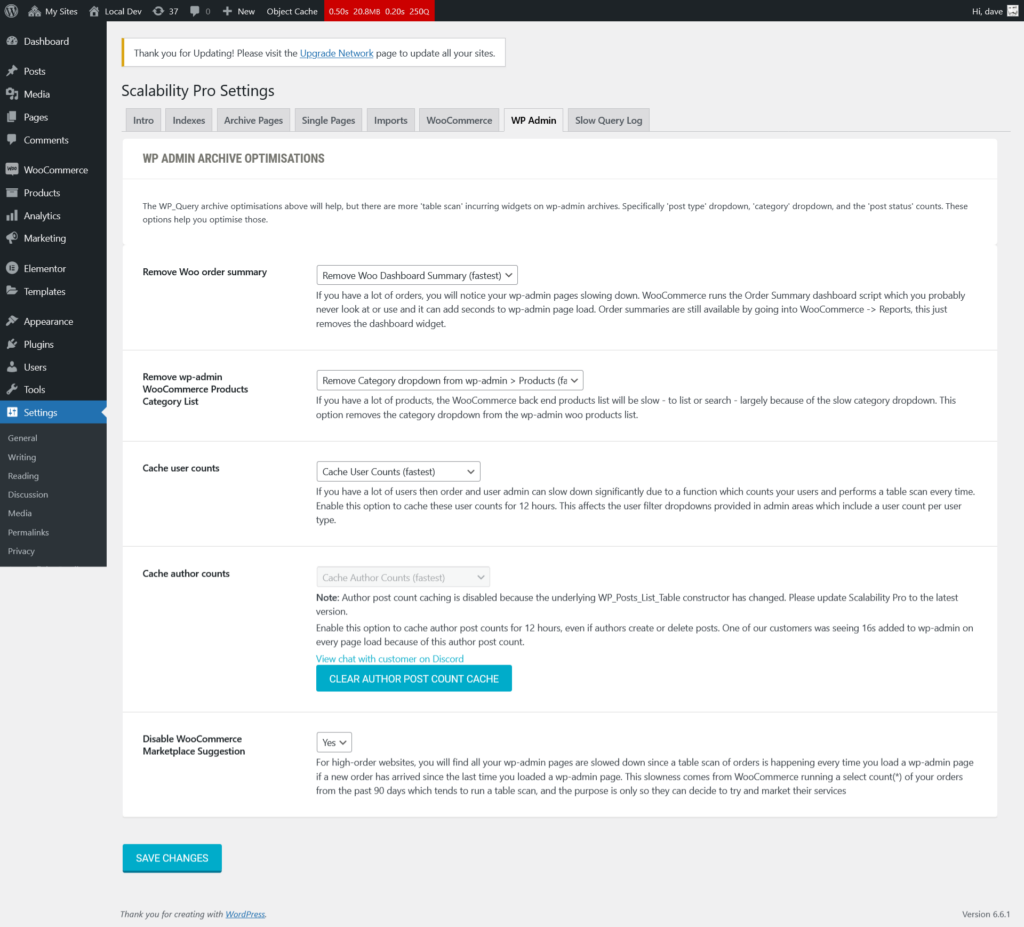
Remove Woo order summary (removewoosummary)
If you have a lot of orders, you will notice your wp-admin pages slowing down. WooCommerce runs the Order Summary dashboard script which you probably never look at or use and it can add seconds to wp-admin page load. Order summaries are still available by going into WooCommerce -> Reports, this just removes the dashboard widget.
SQL Impact: Removes the order summary dashboard queries from every wp-admin page load.
Side Effects: The dashboard widget is removed. The same data is still available under WooCommerce -> Reports.
Cache wp-admin WooCommerce Products Category List (toplevelcatsonly)
If you have a lot of products, the WooCommerce back end products list will be slow to list or search, largely because of the slow category dropdown. The default WordPress cache gets wiped as soon as any product is edited. Enabling this option uses our cache instead which survives product updates.
SQL Impact: Serves the admin product category dropdown from a durable cache.
Side Effects: None. New categories may take a little while to appear in the dropdown.
Cache user counts (cacheusercounts)
If you have a lot of users then order and user admin can slow down significantly due to a function which counts your users and performs a table scan every time. Enable this option to cache these user counts for 12 hours. This affects the user filter dropdowns provided in admin areas which include a user count per user type.
SQL Impact: Caches the per-role user counts for 12 hours instead of scanning the users table every time.
Side Effects: None. The counts can be up to 12 hours out of date.
Enable this option to cache author post counts for 12 hours, even if authors create or delete posts. One of our customers was seeing 16s added to wp-admin on every page load because of this author post count.
SQL Impact: Caches the current user’s post count shown on the Posts and Products screens.
Side Effects: None. As a safety measure, this option only activates when it confirms its optimised list table still matches your installed version of WordPress, so a WordPress update can never break your admin screens through this feature. It simply stays dormant until Scalability Pro is updated to match.
Disable WooCommerce Marketplace Suggestion (disablewoosuggestions)
For high-order websites, you will find all your wp-admin pages are slowed down since a table scan of orders happens every time you load a wp-admin page if a new order has arrived. This slowness comes from WooCommerce running a select count(*) of your orders from the past 90 days which tends to run a table scan, and the purpose is only so they can decide to try and market their services.
SQL Impact: Removes the marketing order-count scan from wp-admin page loads.
Side Effects: None operationally. It removes only the WooCommerce marketplace and extension suggestions from wp-admin.
Slow Query Log Tab
Scalability Pro includes its own Slow Query Log which does not slow down your site. It is better than the standard MySQL Slow Query log and New Relic since it includes the URL and stack trace which caused the slow query, meaning slow queries are actually more actionable. You can optionally submit these slow query logs to us at WP Intense to help us figure out what optimisations to add next to Scalability Pro.
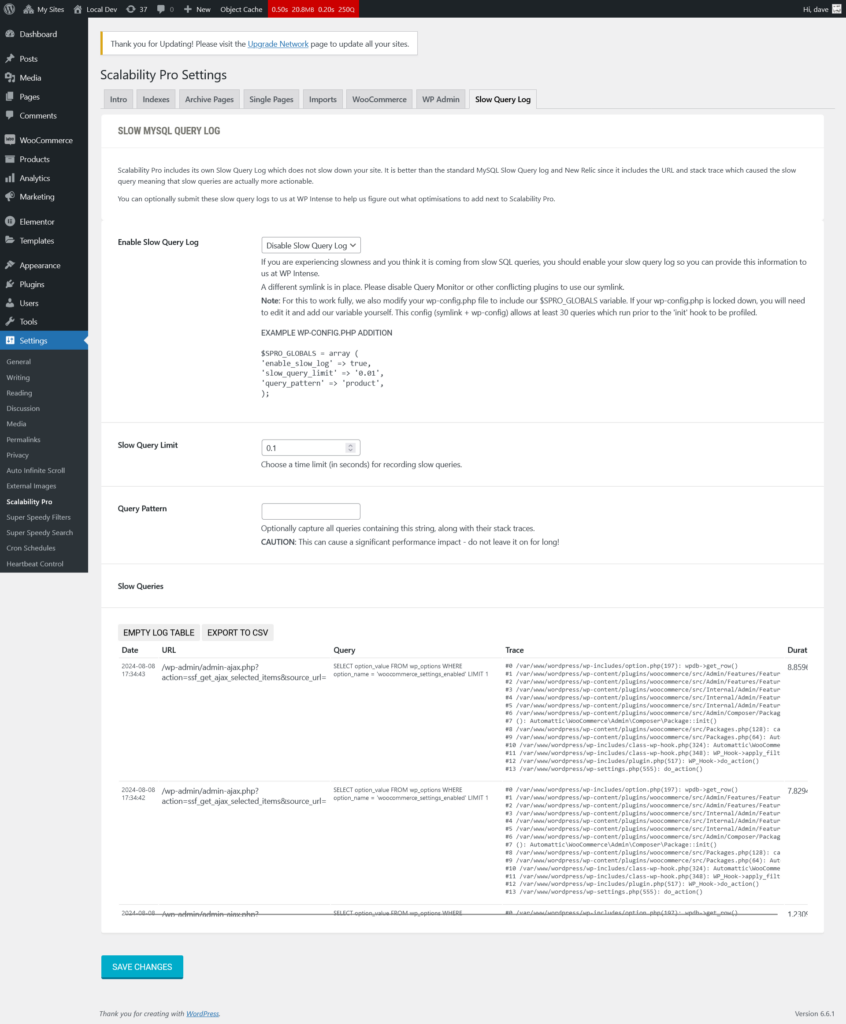
Enable Slow Query Log (enable_slow_log)
If you are experiencing slowness and you think it is coming from slow SQL queries, you should enable your slow query log so you can provide this information to us at WP Intense. For this to work fully, Scalability Pro also modifies your wp-config.php file to include a $SPRO_GLOBALS variable and can install a db.php drop-in (via a symlink) so that queries which run before the ‘init’ hook can be profiled. Please disable Query Monitor or other conflicting plugins to use our symlink.
SQL Impact: This is a diagnostic tool rather than an optimisation. It records slow queries so you can see what to optimise.
Side Effects: Logging has its own performance cost and it edits wp-config.php and installs a db.php drop-in, so use it to diagnose a problem and then switch it off.
Slow Query Limit (slow_query_limit)
Choose a time limit (in seconds) for recording slow queries. On a busy site you might start at one second to catch the worst offenders, then lower it as you clear them.
Query Pattern (query_pattern)
Optionally capture all queries containing this string, along with their stack traces. This is useful when you want to focus on one table or query type.
Caution: This can cause a significant performance impact, so do not leave it on for long.
Advanced Tab
The Advanced tab lets you export your Scalability Pro settings to a file and import them on another site, which is handy if you run several sites and want a consistent setup. Use the Export panel to copy your settings to the clipboard or download them as JSON, then paste them into the Import panel on another site.
Two things to note. Importing settings overwrites all your current Scalability Pro settings, so export your current settings first if you want a backup. And database indexes are created per site, so they are not part of the settings export. After importing settings on a new site, you still need to create the indexes from the Indexes tab on that site.
